Display table
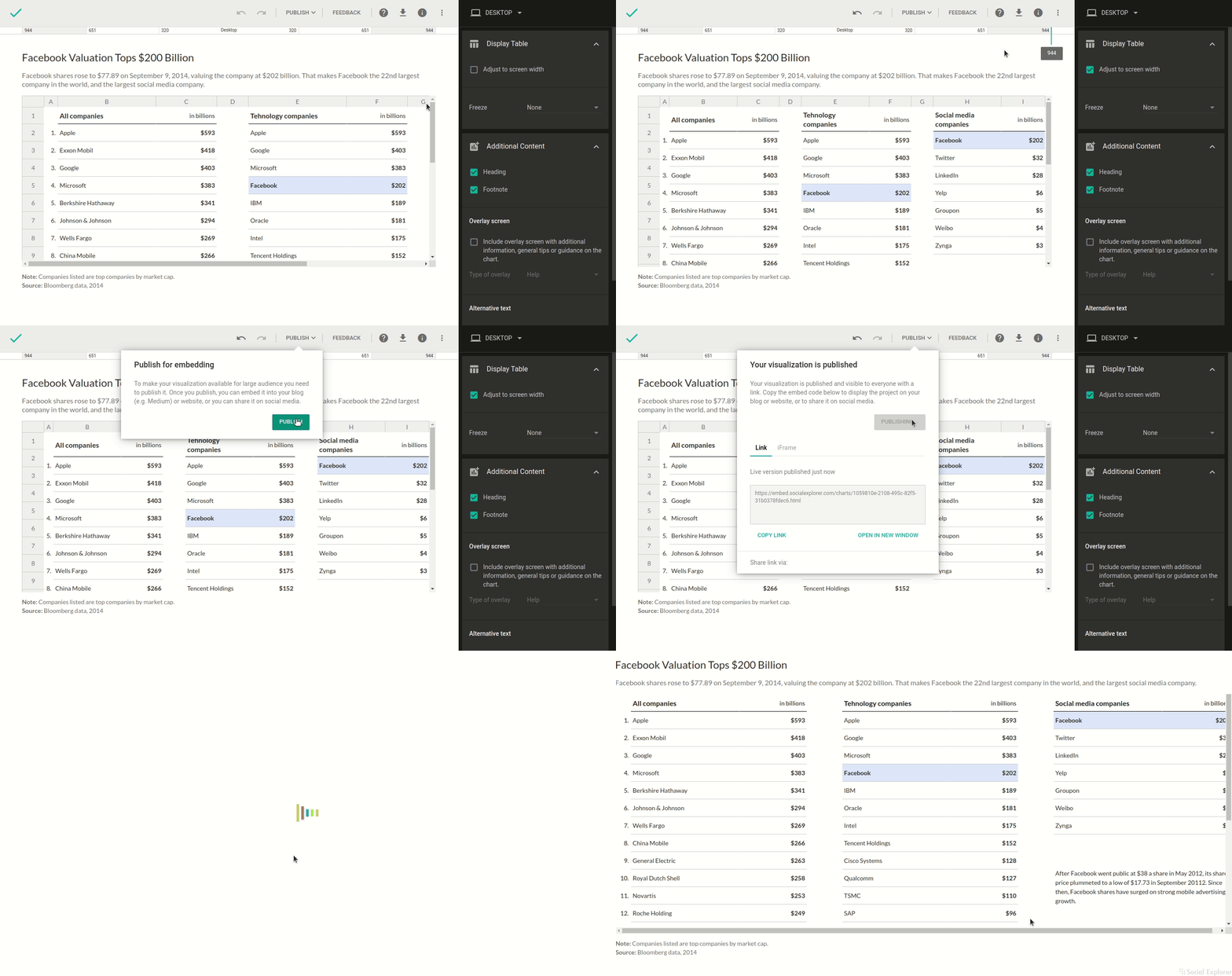
Adjust to screen width
Adjust to screen width – This option will help you adjust the table to be responsive on every screen. To enable this option, click on the checkbox. If a table doesn't quite fit the screen and you don’t want to make your audience use the horizontal scroll, there's a really easy way to adjust it! Click Edit when viewing the table and check the box next to Adjust to screen width to enable it. As a result, columns will be stretched or shrunk proportionally to fit the screen width.
Show table headers in published view
Role: Presentation
Collapse all groups by default
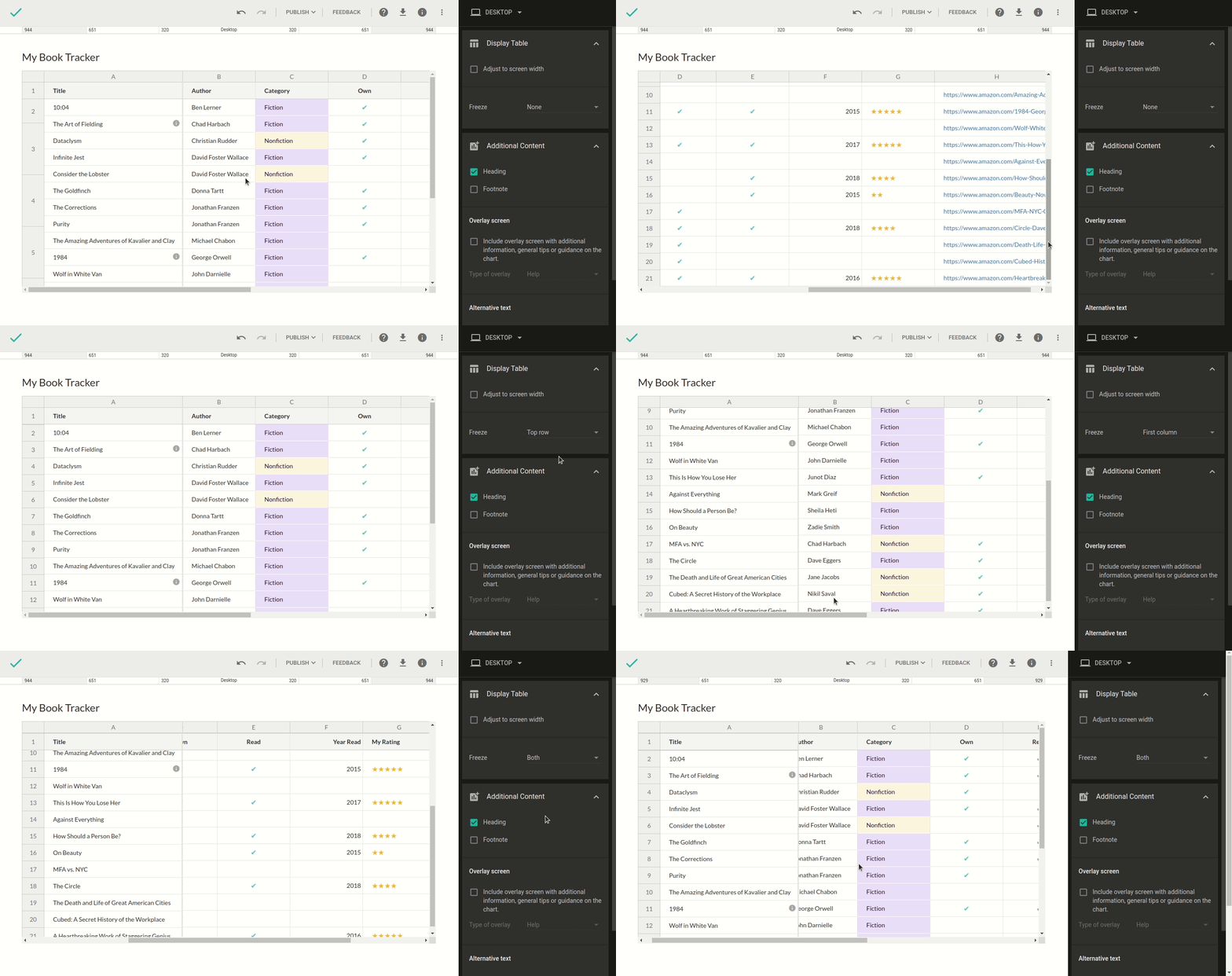
Freeze
Freeze – This option can freeze the top row, first column, or both of them. You can disable it by choosing the “None” option from the list. When you’re working with larger data sets, fixing the top row and the leftmost column can come in handy, especially when you scroll to another area of the table. Simply select the top row, leftmost column, or both from the Freeze dropdown in the right-hand sidebar.