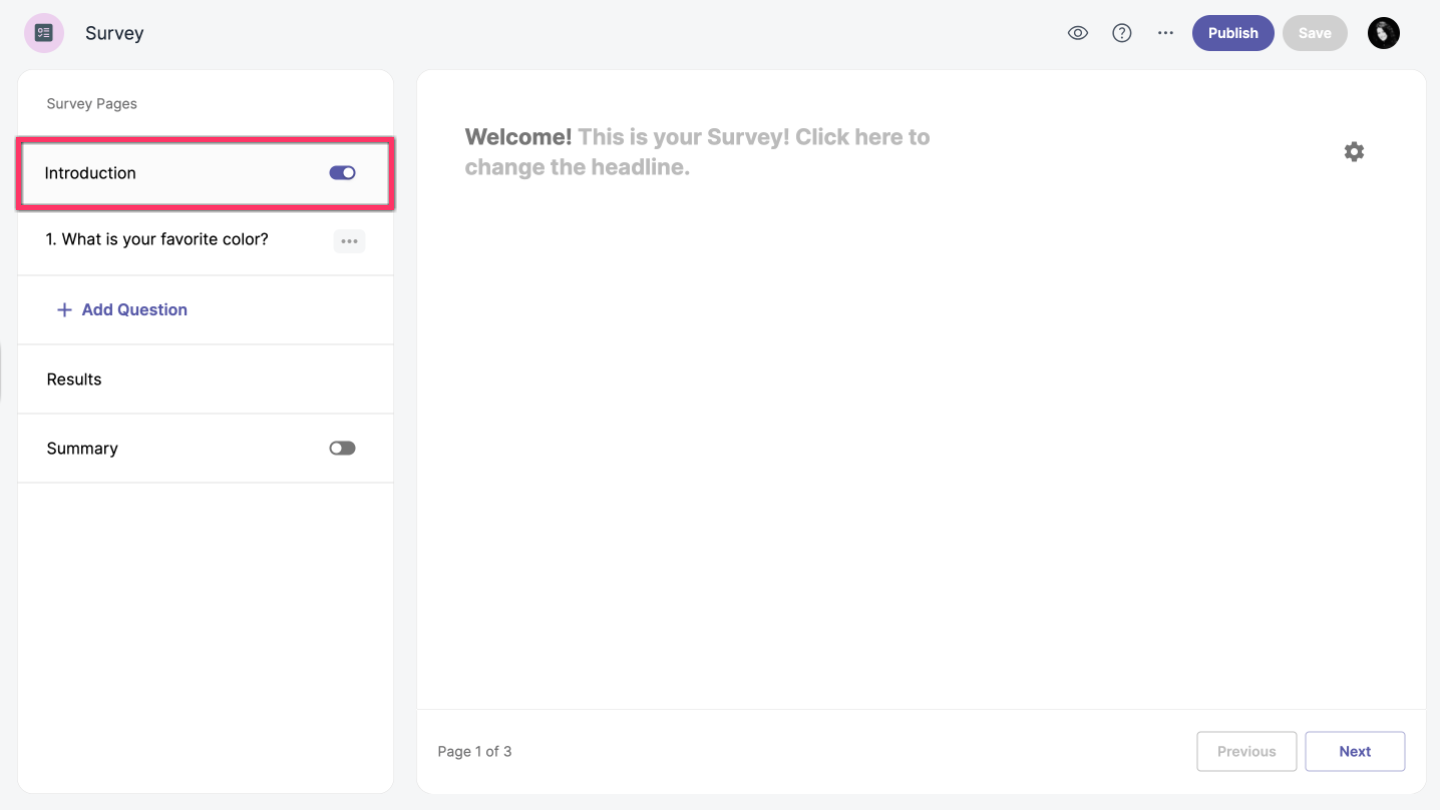
Introduction page
When you create your survey, you will be redirected to the Vizualist Surveys editor. You can add or remove the introduction page by enabling or disabling the Introduction option toggle_on in the left-hand sidebar.
Edit introduction page
The introduction page includes three settings: header, description, and image. All options are optional—you can add all, only one, or none.
Add header
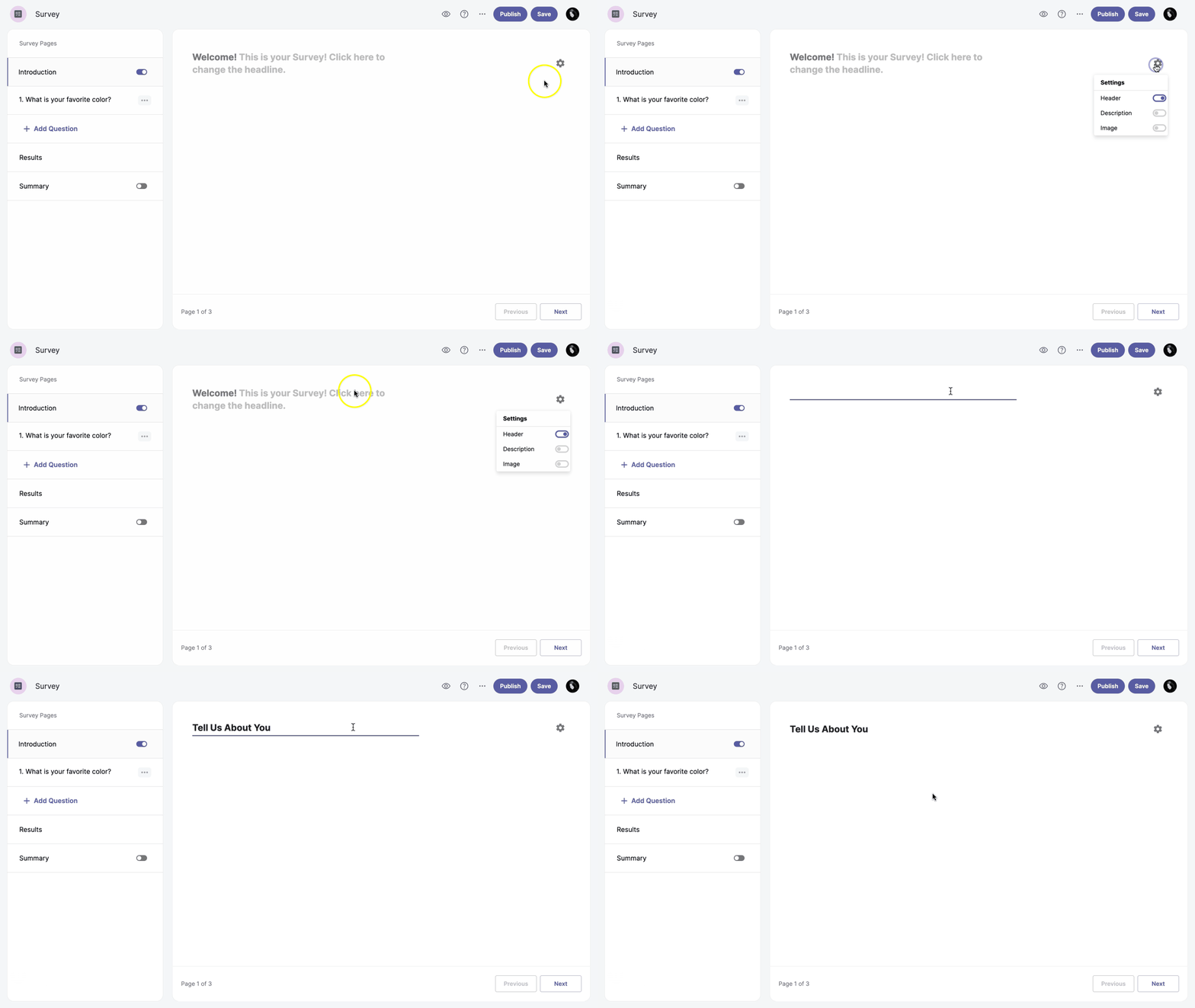
You can add a header to your introduction page.
-
Click the Introduction page.
-
Click Introduction Settings settings in the top right corner.
-
Enable the Header option toggle_on.
Add description
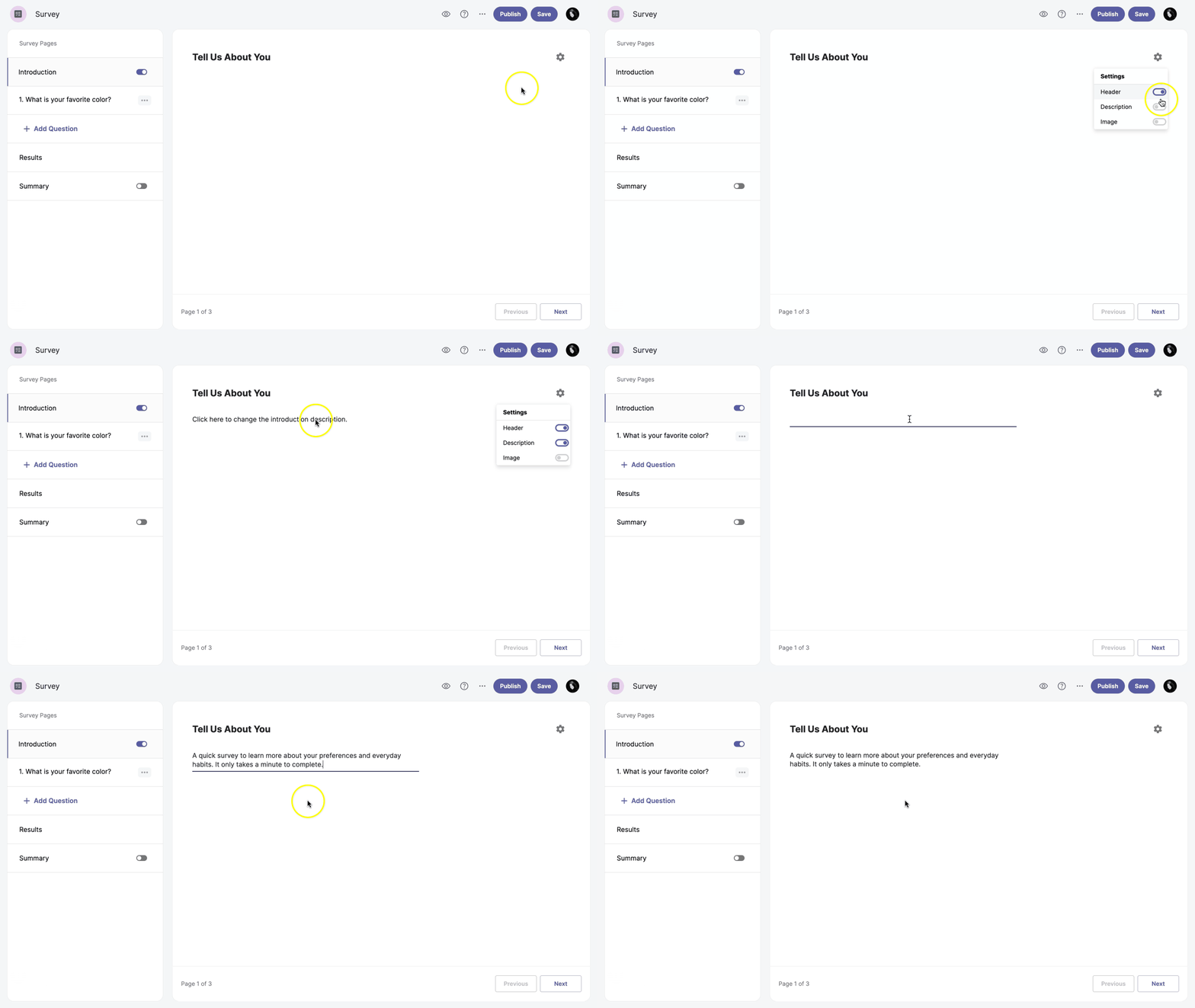
You can add a description to your survey by enabling the Description setting.
-
Click the Introduction page.
-
Click Introduction Settings settings in the top right corner.
-
Enable the Description option toggle_on.
-
Enter your description text.
Add image
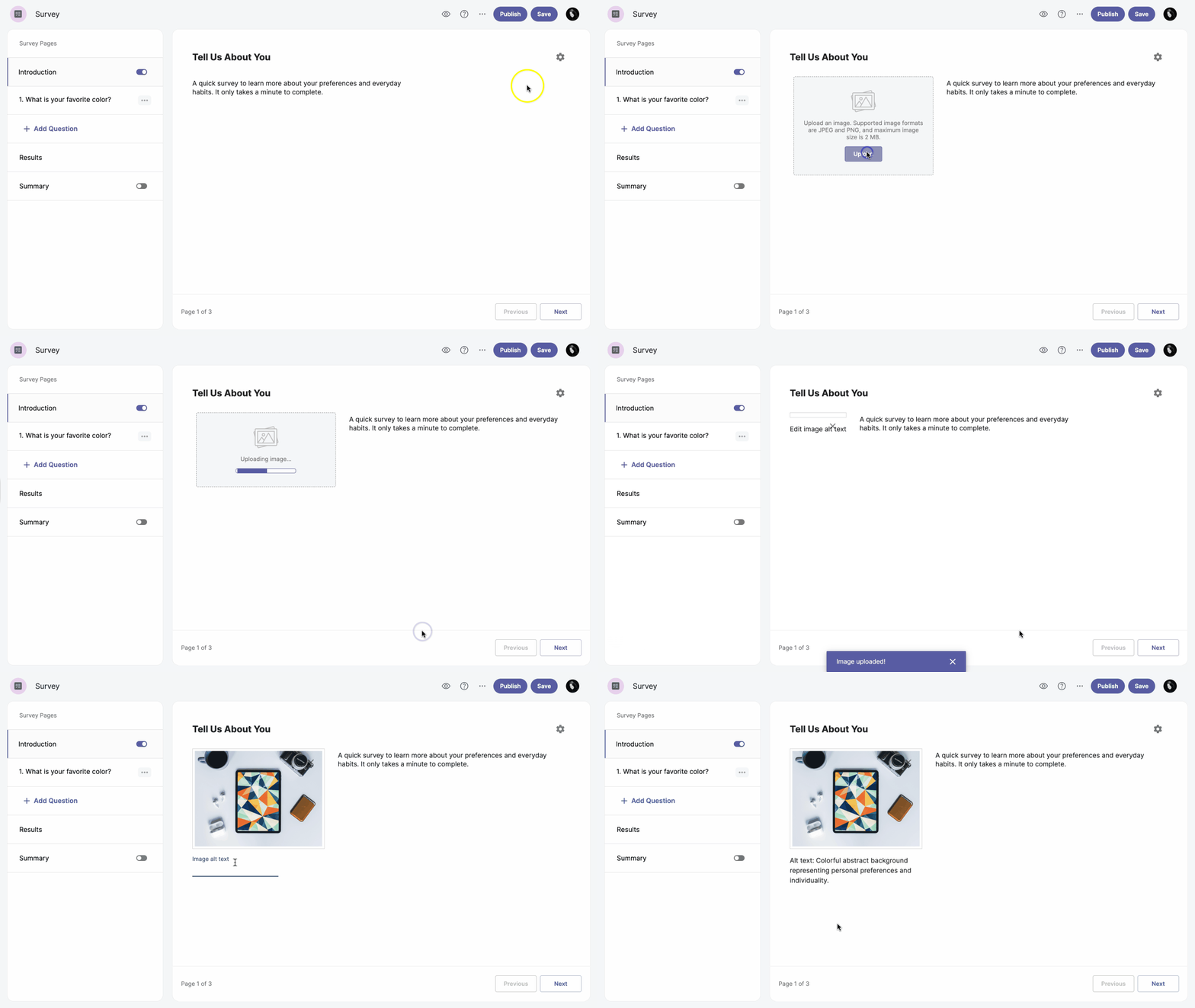
You can enhance your introduction page by adding an image.
-
Click the Introduction page.
-
Click Introduction Settings settings in the top right corner.
-
Enable the Image option toggle_on.
-
Click Upload and choose a file from your computer.
Supported image formats are JPEG and PNG, and the maximum file size is 2 MB.
-
Add image alt text below the image.