Editing post
All changes made are automatically saved.
Header, title and subtitle
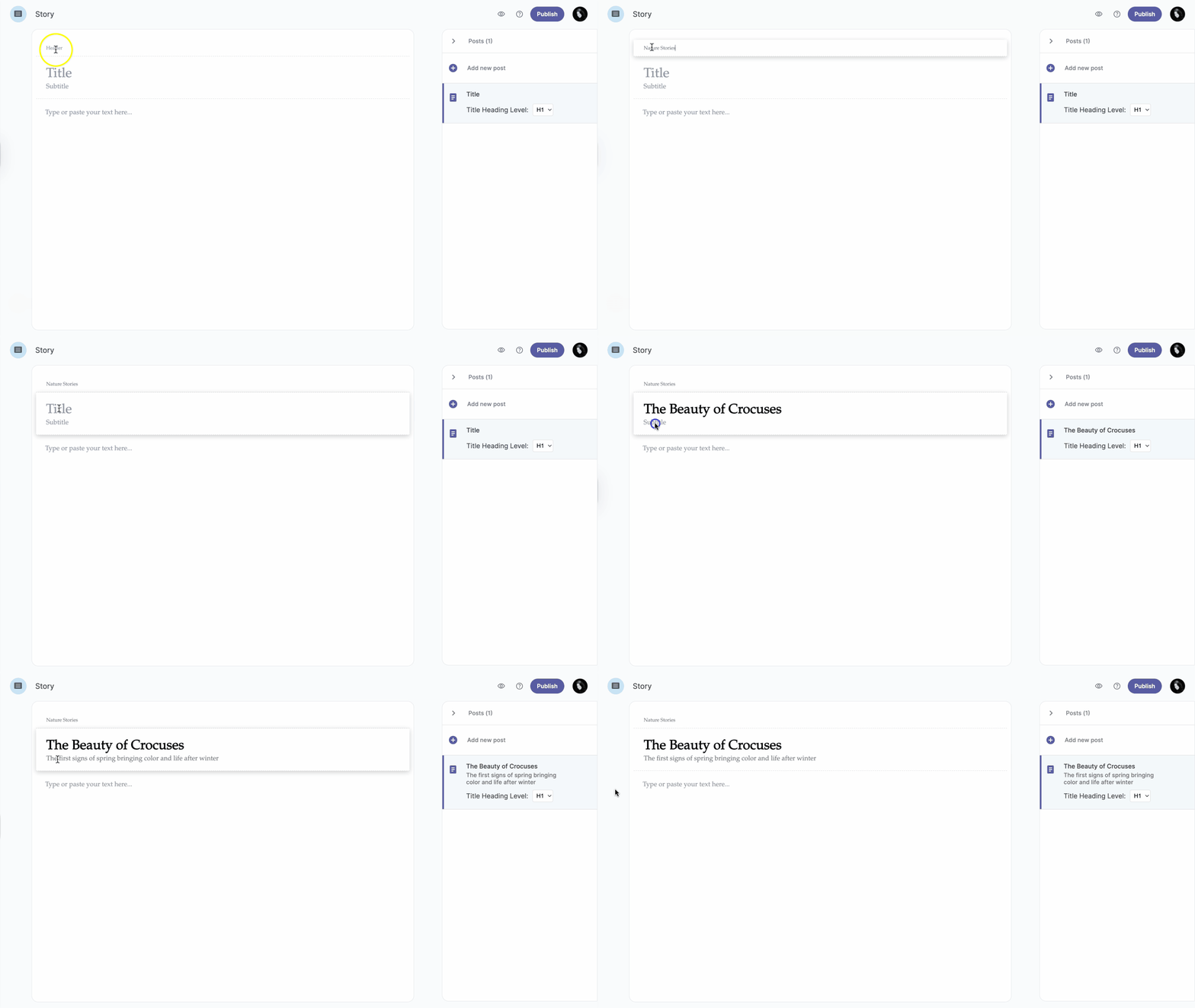
The header and title with its subtitle can be of crucial importance for your audience to have an immediate picture of what the topic of the story is about. To create and write your header, title, and subtitle please go through the following steps:
-
In the upper-left corner click on Header and edit your header.
-
Click on Title and edit your title.
-
Click on Subtitle and edit your subtitle.
Style types
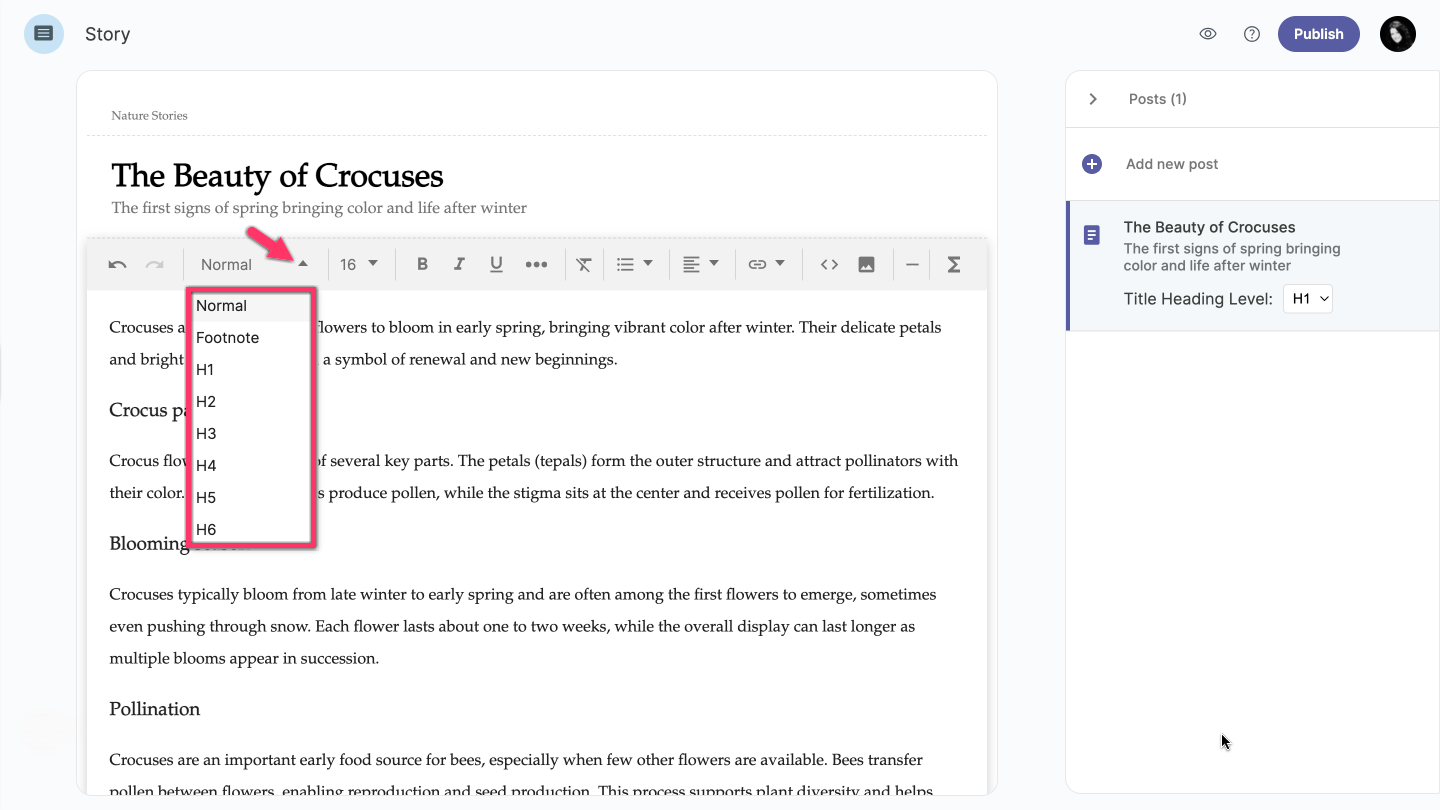
There are several different text styles that you can choose to edit your text:
Normal text, Footnote, Heading (H1 to H6), Blockquote and Code.
-
Click the blank space in the text editor, or select the text part you want to edit.
-
Click on the Block type dropdown and choose the style type you prefer.
-
After you have chosen the style type, you can change the Font size, which is right next to the Block type.
Edit text data
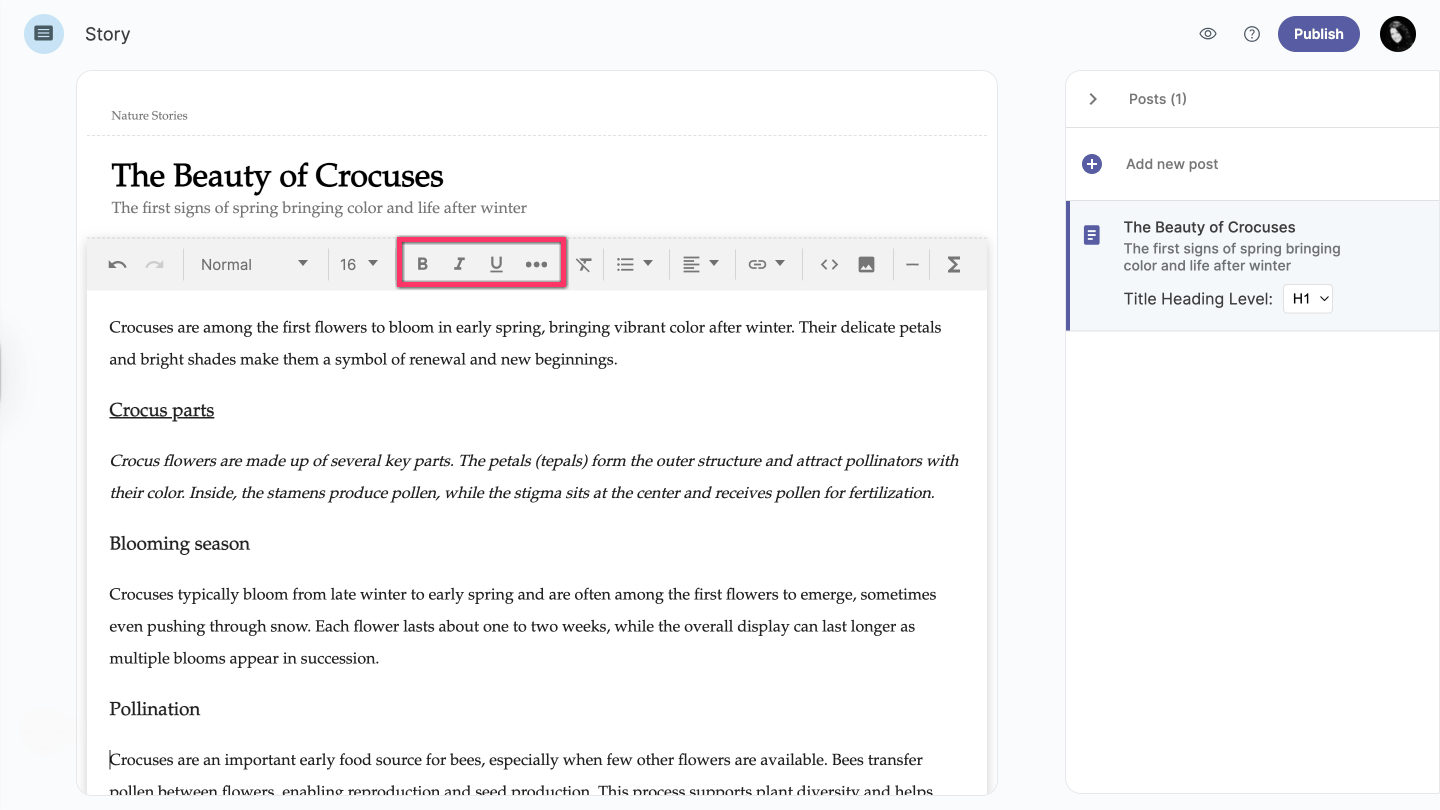
You can format your text by making it as bold, italic, underline, strikethrough, superscript, or subscript.
-
Click the blank space in the text editor, or select the text part you want to edit.
-
Choose the format style from listed options.
Depending on your screen size, some of the style options can be listed under More Options  .
.
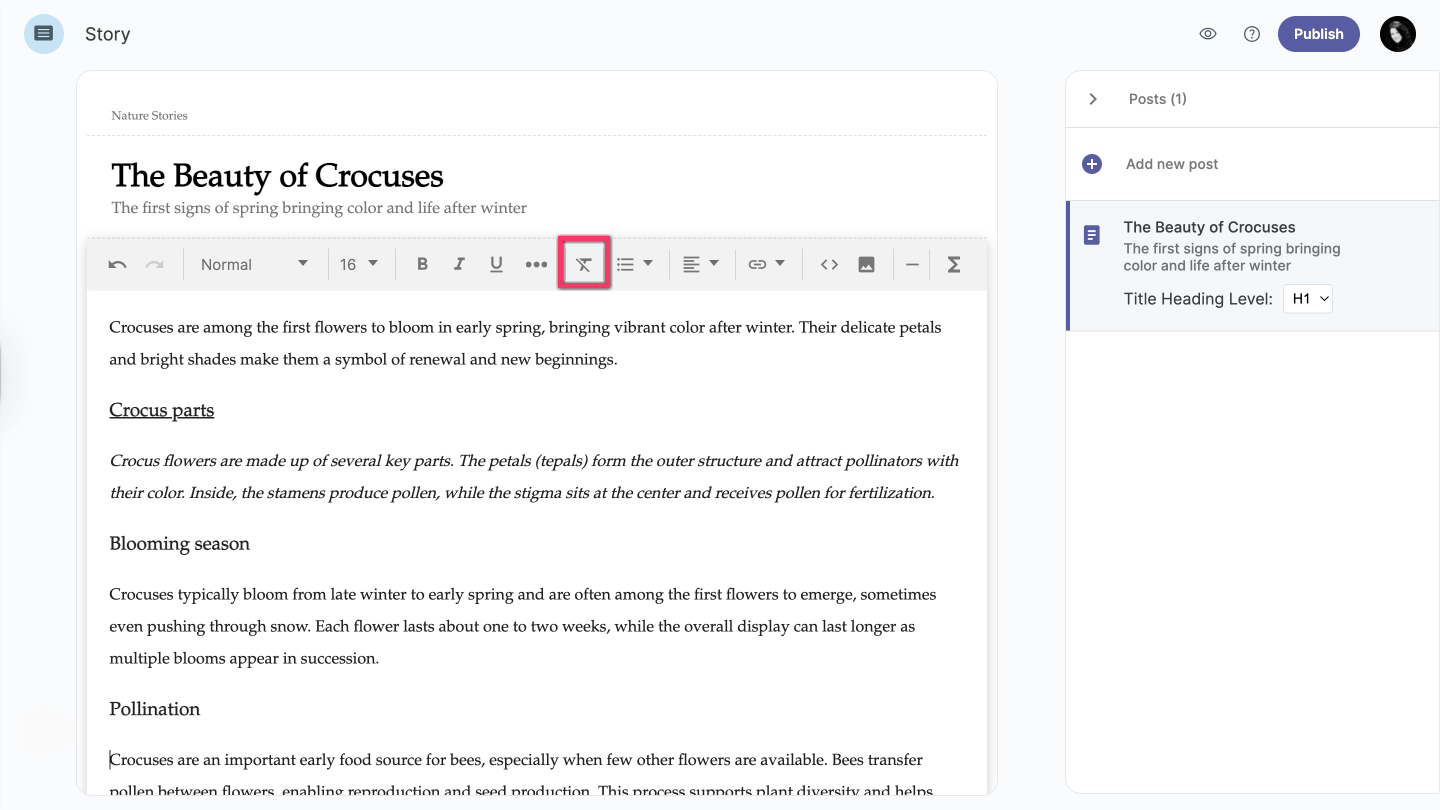
Clear formatting
-
Select the text from which you want to remove formatting.
-
Click on Clear formatting option.
List
-
Click the blank space in the text editor, or select the text part you want to edit.
-
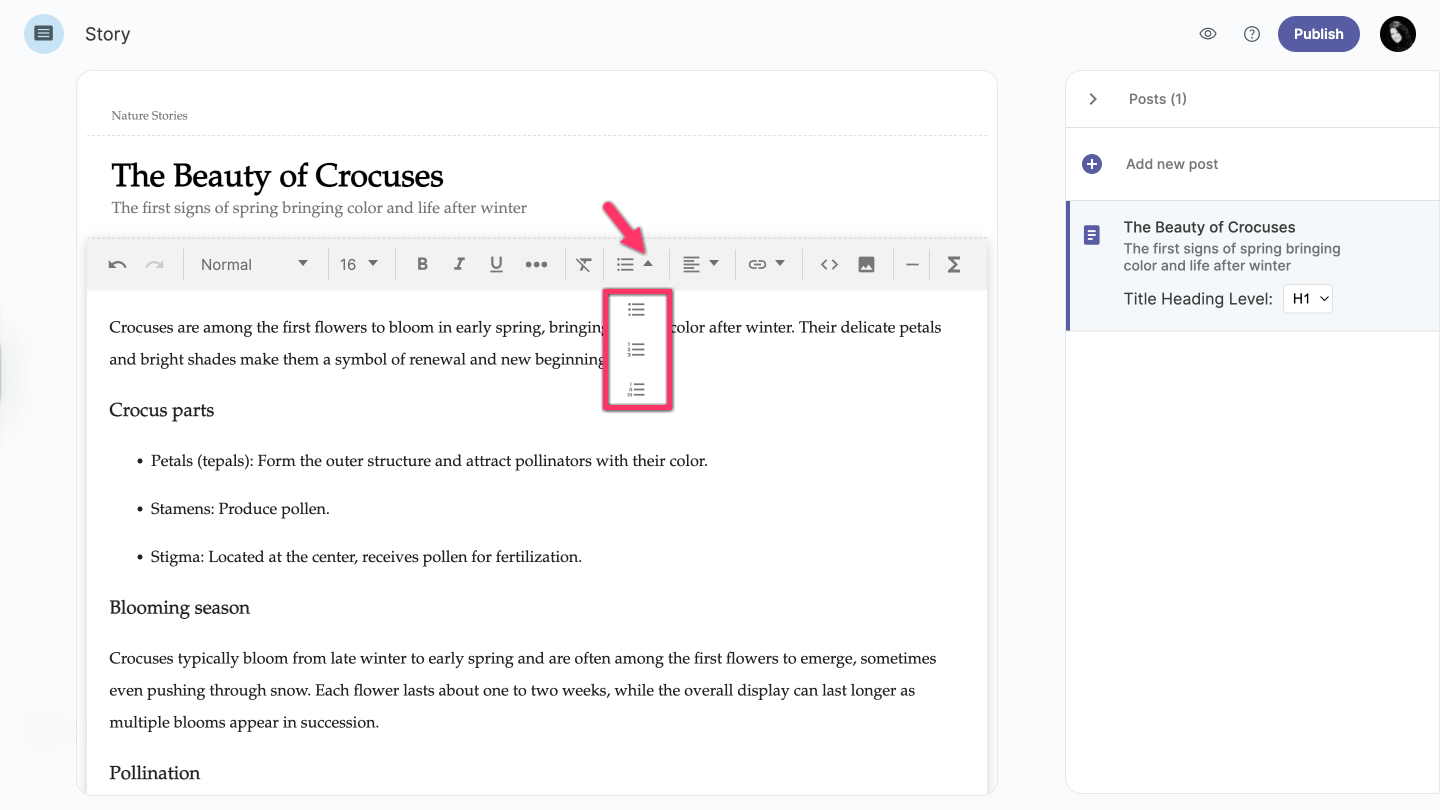
Click on the List dropdown.
-
Choose the list type you prefer.
Text alignment
-
Click the blank space in the text editor, or select the text part you want to edit.
-
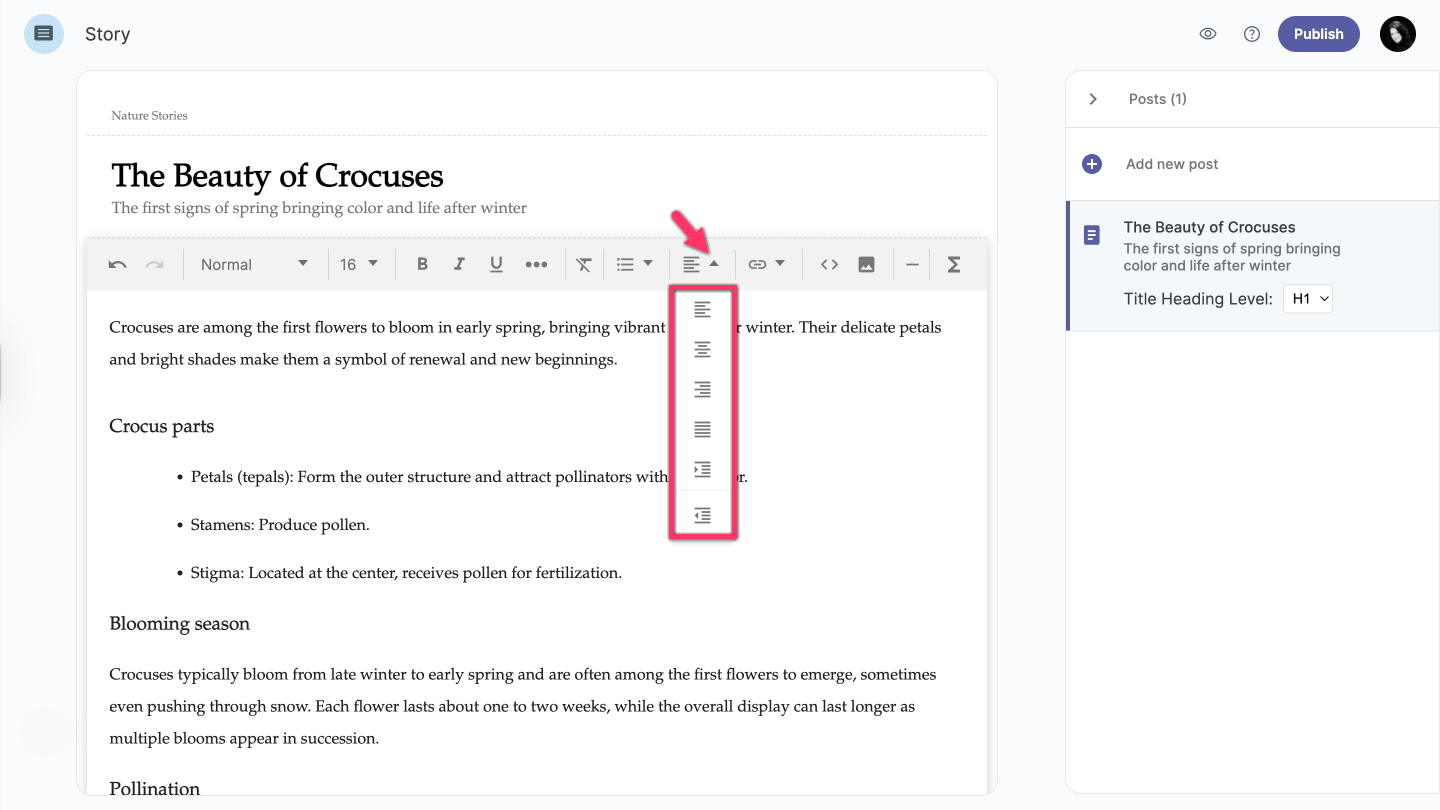
Click on Text align dropdown.
-
Choose the alignment of your text.
Link/Unlink
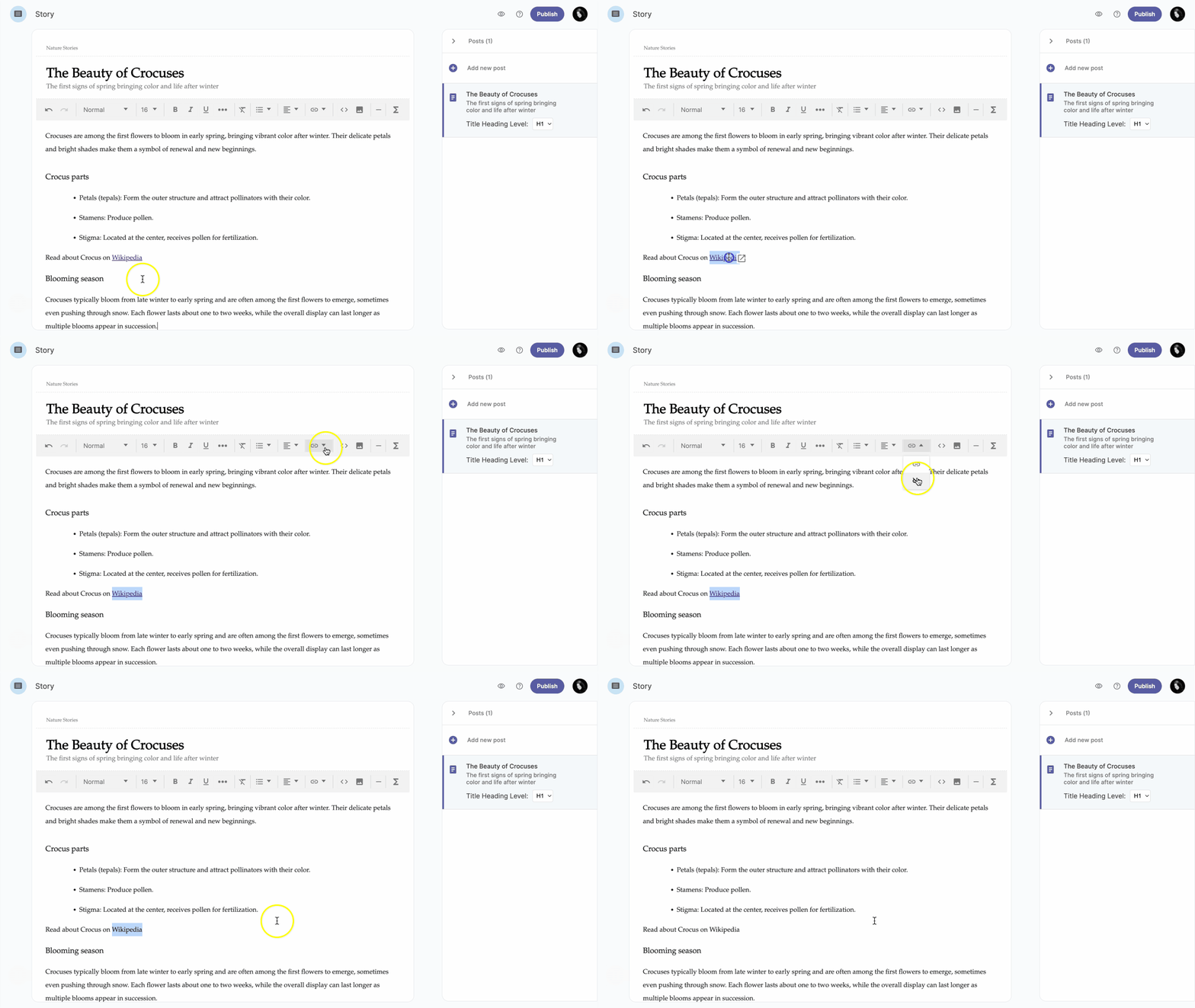
Link
-
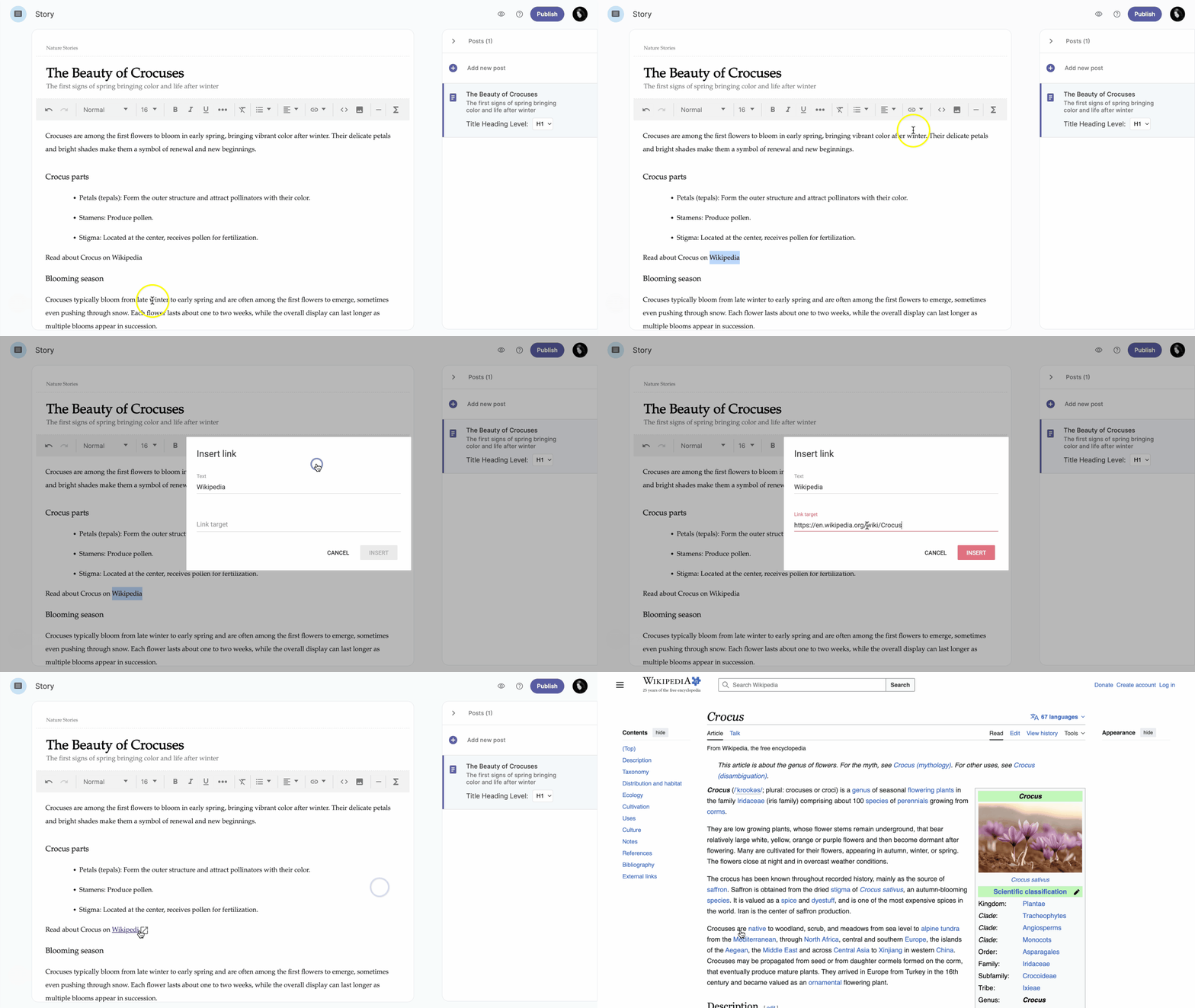
Click the blank space in the text editor.
-
Click on Link/Unlink.
-
Click on Link option.
-
Insert the text of the link.
-
Insert the link target.
-
Click the Insert button.
Unlink
-
Click on the link you would like to remove.
-
Click on Link/Unlink.
-
Click on Unlink option.
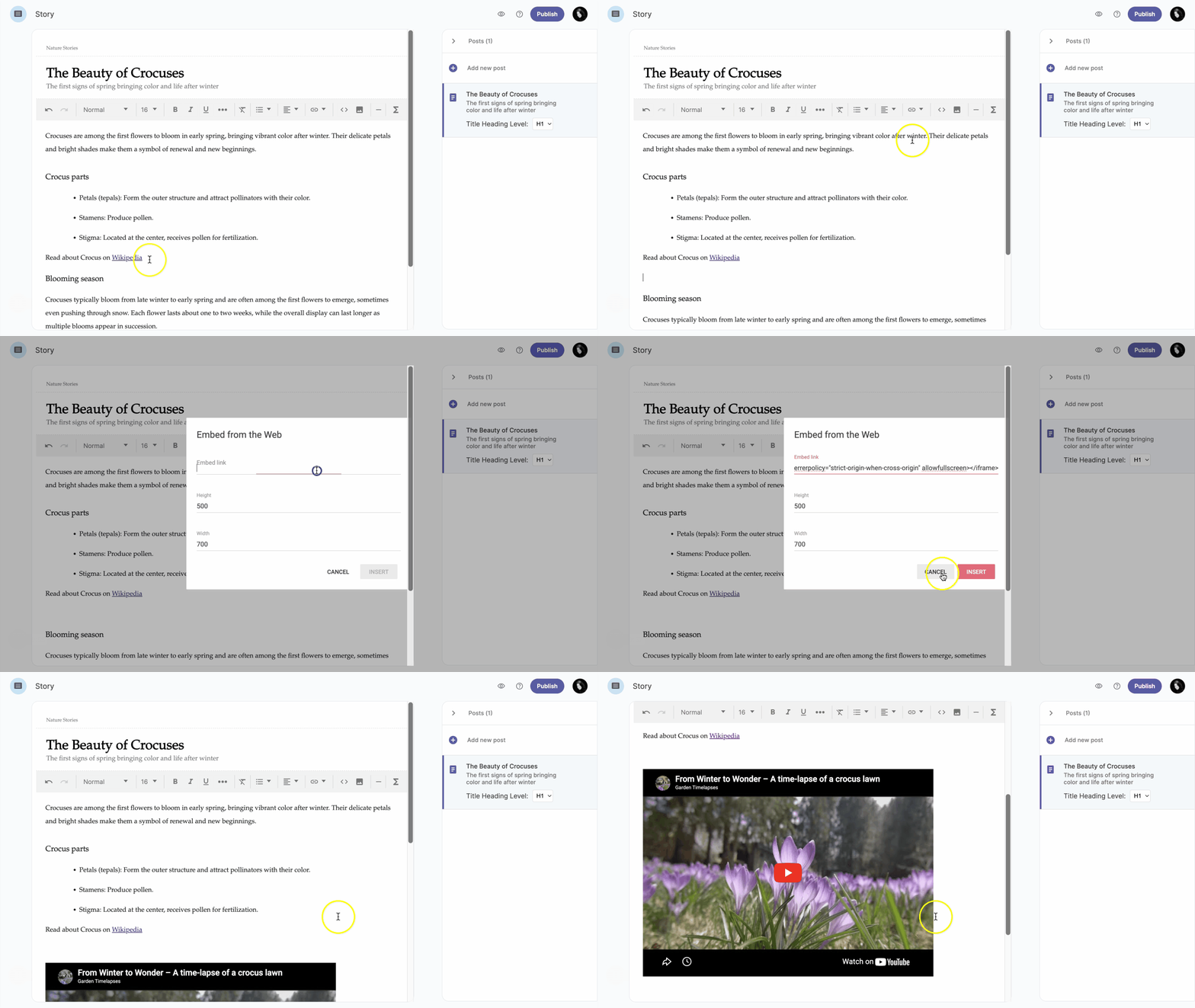
Embedded
-
Click the blank space in the text editor.
-
Click on Embedded option.
-
Insert the link that you want to embed.
-
Adjust the height and width of the embed link.
-
Click the Insert button.
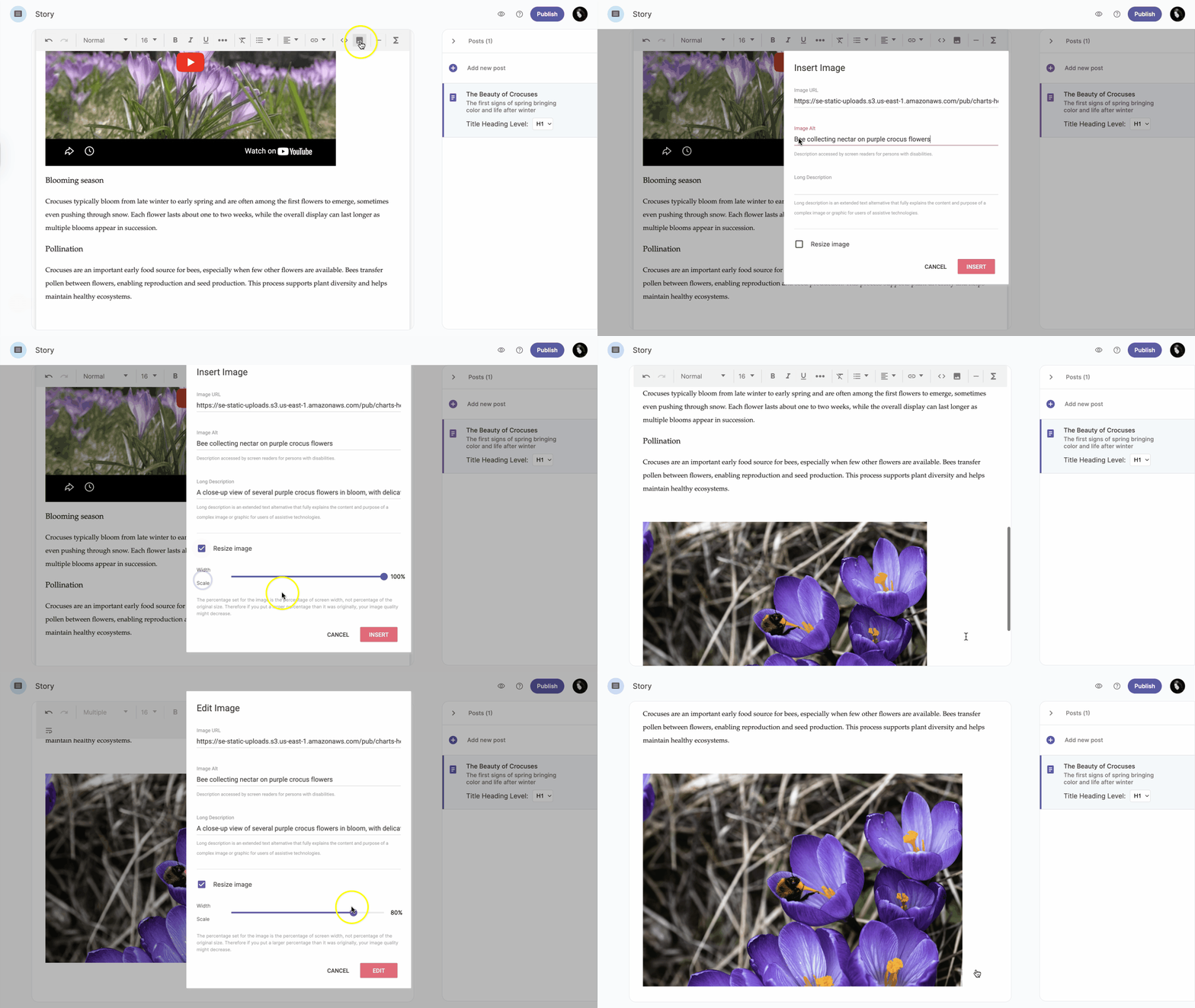
Insert image
-
Click the blank space in the text editor.
-
Click on Image option.
-
Insert the image URL.
-
Type in the Alt text.
-
Click the Insert button.
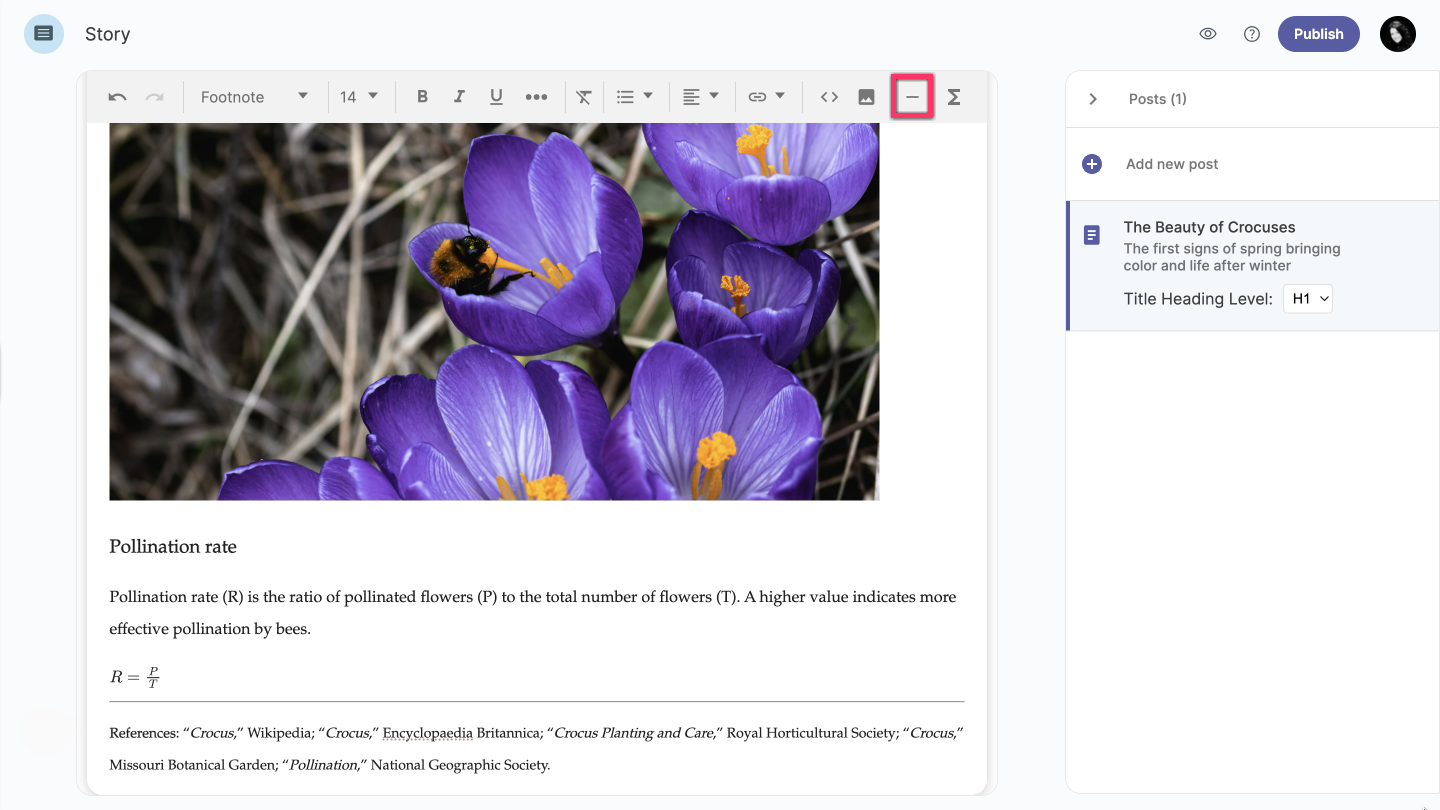
Insert horizontal line
-
Click the blank space in the text editor.
-
Click on the Insert horizontal line option, and the line will be added.
Math equation
Equations are used to represent relationships between numbers, variables, and operations. You can add math equations to a story using either MathML or LaTeX.
- MathML (Mathematical Markup Language) is a markup language based on XML, used to display and structure mathematical expressions in a way that stories and browsers can understand.
- LaTeX is a simple text-based format for writing mathematical equations using special commands, which are then rendered into properly formatted math.
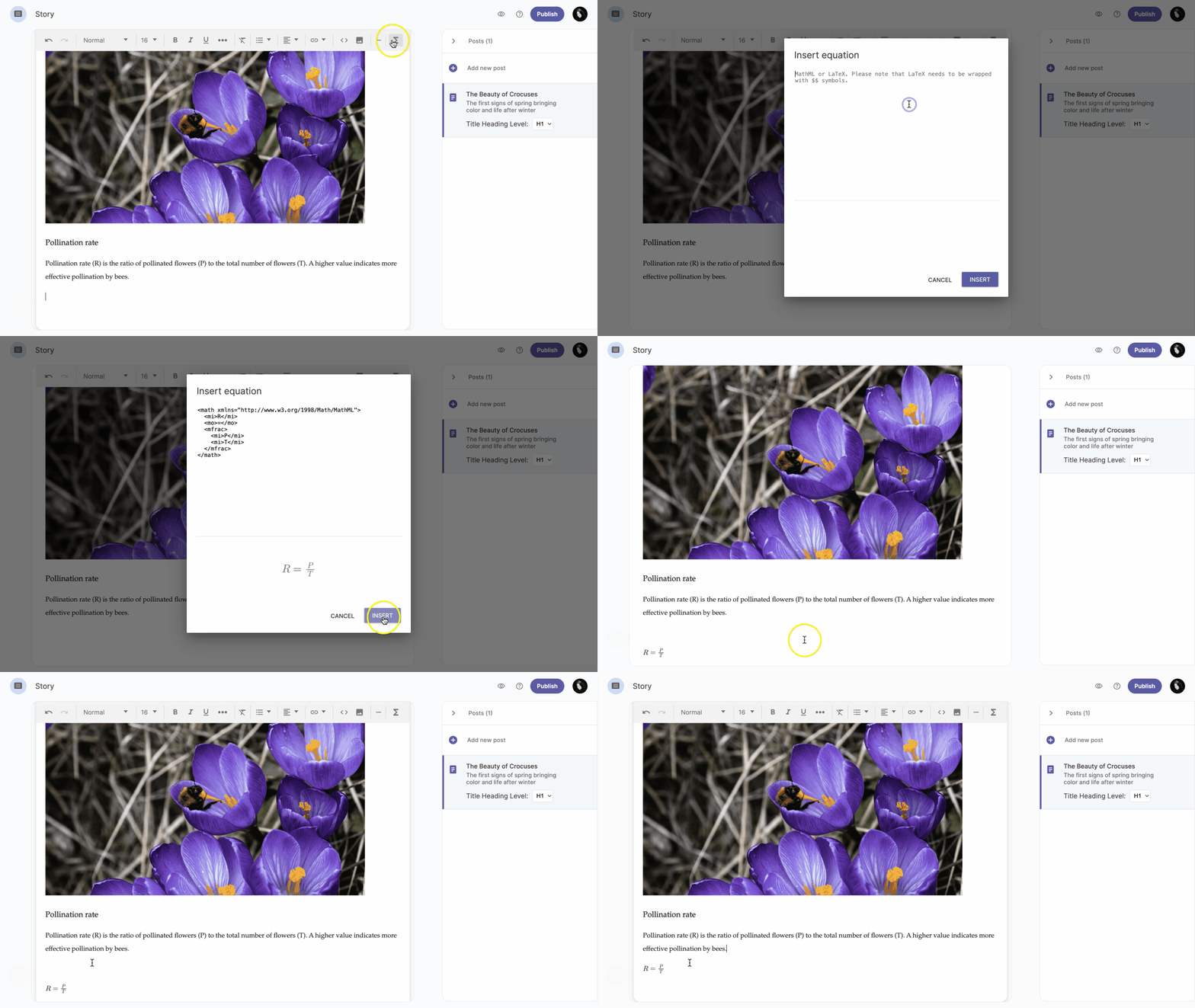
To add a math equation to your story, follow these steps:
-
Click the blank space in the text editor.
-
Click on Math equation option and the Insert Equation window will open.
-
Add your mathematical notation using MathML or LaTeX.
-
Click the Insert button and see your math equation inside the story.