Components
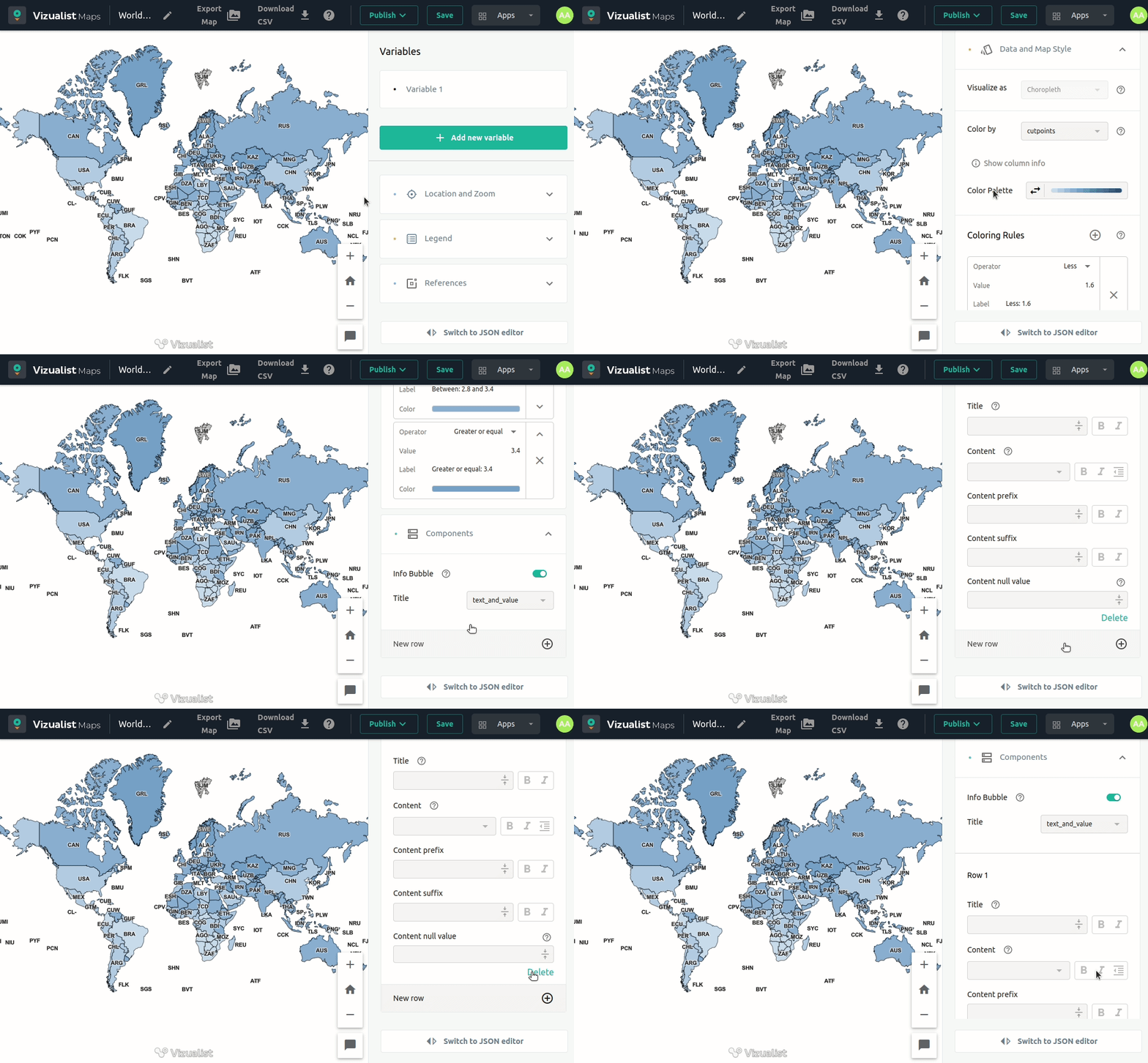
Components are great if you want your map to have more information. To enter this section, click on the variable you want to edit.
Info Bubble
Info bubbles are small popup overlays that appear when you move your mouse or tap on geographic areas in your map visualization.To turn on the popup overlay on the map, enable Info Bubble.
Info Bubble option offers you to edit the title and content to provide a meaningful explanation for the value in the info bubble.
Please note that the most used title is the column name for State names, World countries names, etc. in the dataset.
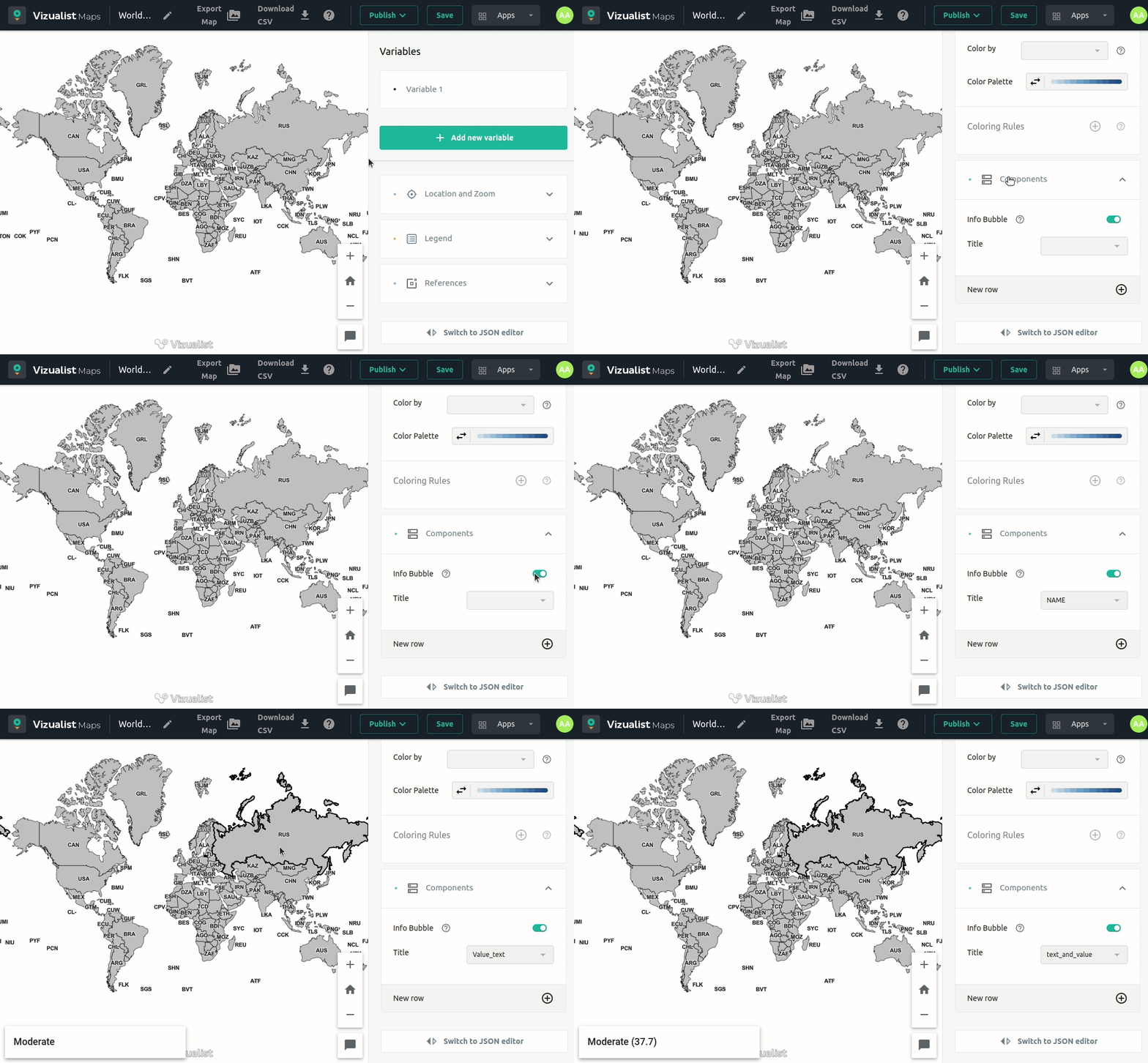
New row
To add a new row to your Info Bubble, click on the New row icon  in the bottom right corner.
Edit row
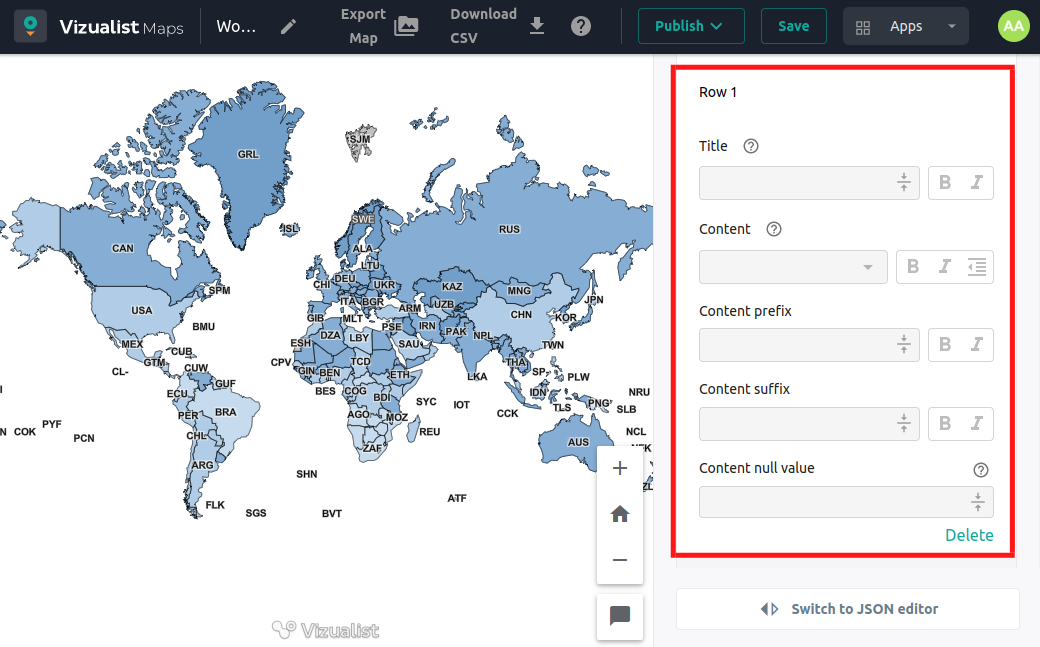
For each row, you can add title, content, prefix, suffix, or content null value.
 you can choose which value you want to add to that row. Also, you can add bold or italic style and add indentation.
Content prefix and suffix – You can add a prefix or suffix to your row. Click on the text field and enter the value you want for the prefix or suffix.
Content null value – You can override the content null value to provide a meaningful explanation for no data displayed, for example No available data.
Add and delete row
If you want to have more than one row in your info bubble, click on the New row icon in the bottom right corner.
If you decide you don’t need a specific row you can delete it by clicking the Delete button in the bottom right corner of the row section.