Editing annotations
Add annotation
-
In the scenes panel, click the arrow next to the scene where you want to add an annotation.
-
Select a marker at the bottom of the scene editor and place it on your artifact.
A marker can be a pin, square or circle.
To add more annotations, simply repeat the steps above.
After adding a scene, you can now edit it, for example, manage the marker and add annotation content.
Marker color
The marker color can be set for both the default and selected states. The icon and background colors can also be adjusted, and the opacity can be changed using the slider, which displays the value as a percentage.
The marker color option is available only for the pin annotation.
The “default” pin color will change to the “selected” when the marker is selected.
Marker size
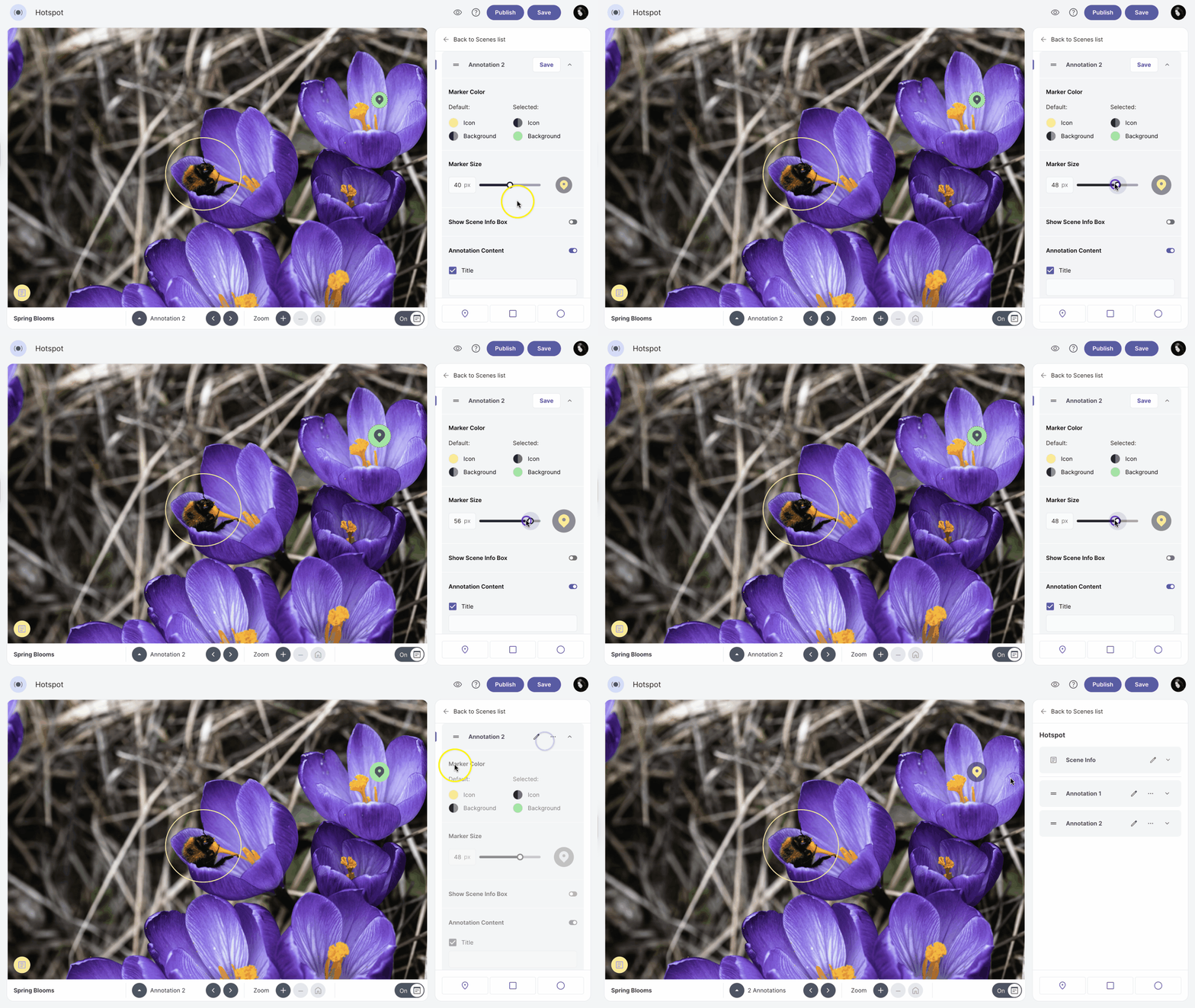
The marker size can be adjusted by moving the slider or entering the value in pixels.
The marker size option is available only for the pin annotation.
Marker border color
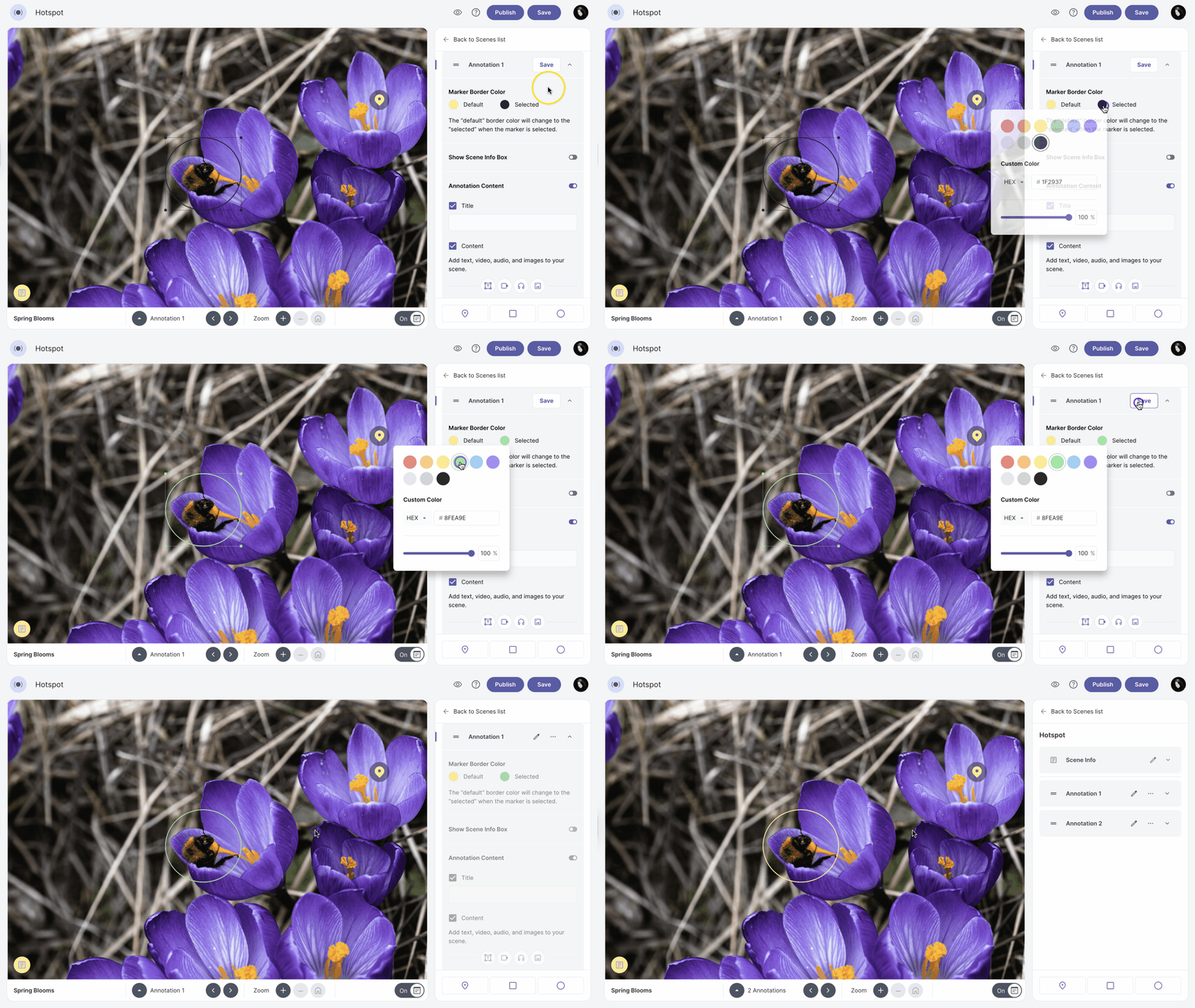
The marker birder color can be set for both the default and selected states. The opacity can be changed using the slider, which displays the value as a percentage.
The marker border color option is available only for the square and circle annotations.
The “default” border color will change to the “selected” when the marker is selected.
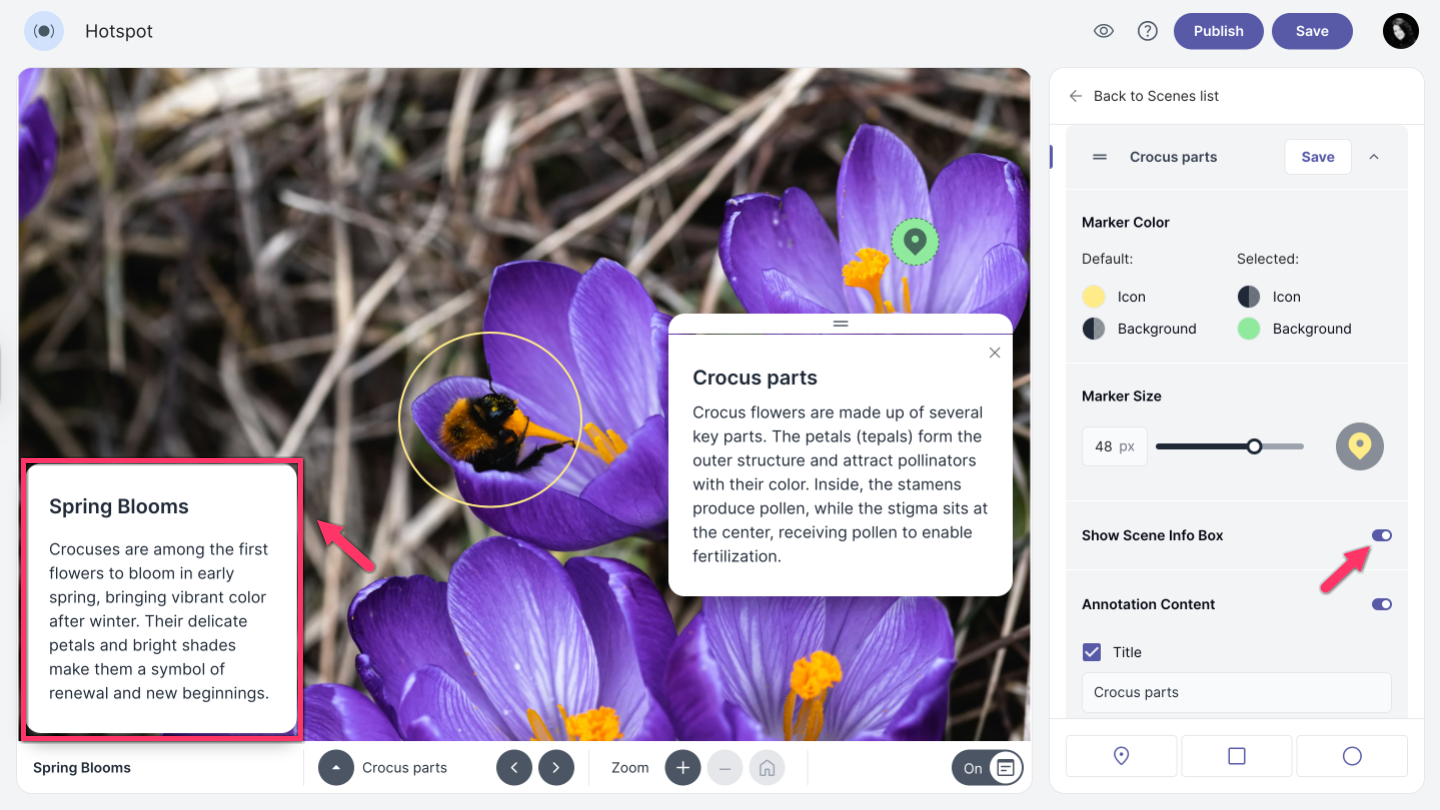
Show scene info box
For the Show Scene Info Box option to become active and available to enable, Scene Info Box content for the scene must be added.
Annotation content
To add content to an annotation Annotation Content option must be enabled.
-
Click on text, video, audio, or image button to add content to the annotation info box.
You can format your text by making it bold or italic, turning it into a list, choosing the text alignment, or adding a link. For image, paste image URL from website or upload from your computer. Supported image formats are JPG, PNG and SVG. For audio or video, simply copy the link and paste the link into the provided field.
Add multiple content blocks if needed.
-
Use the arrow buttons next to each block to change the order of the content.
-
To remove a content block, click
 and select Delete block.

Saving changes
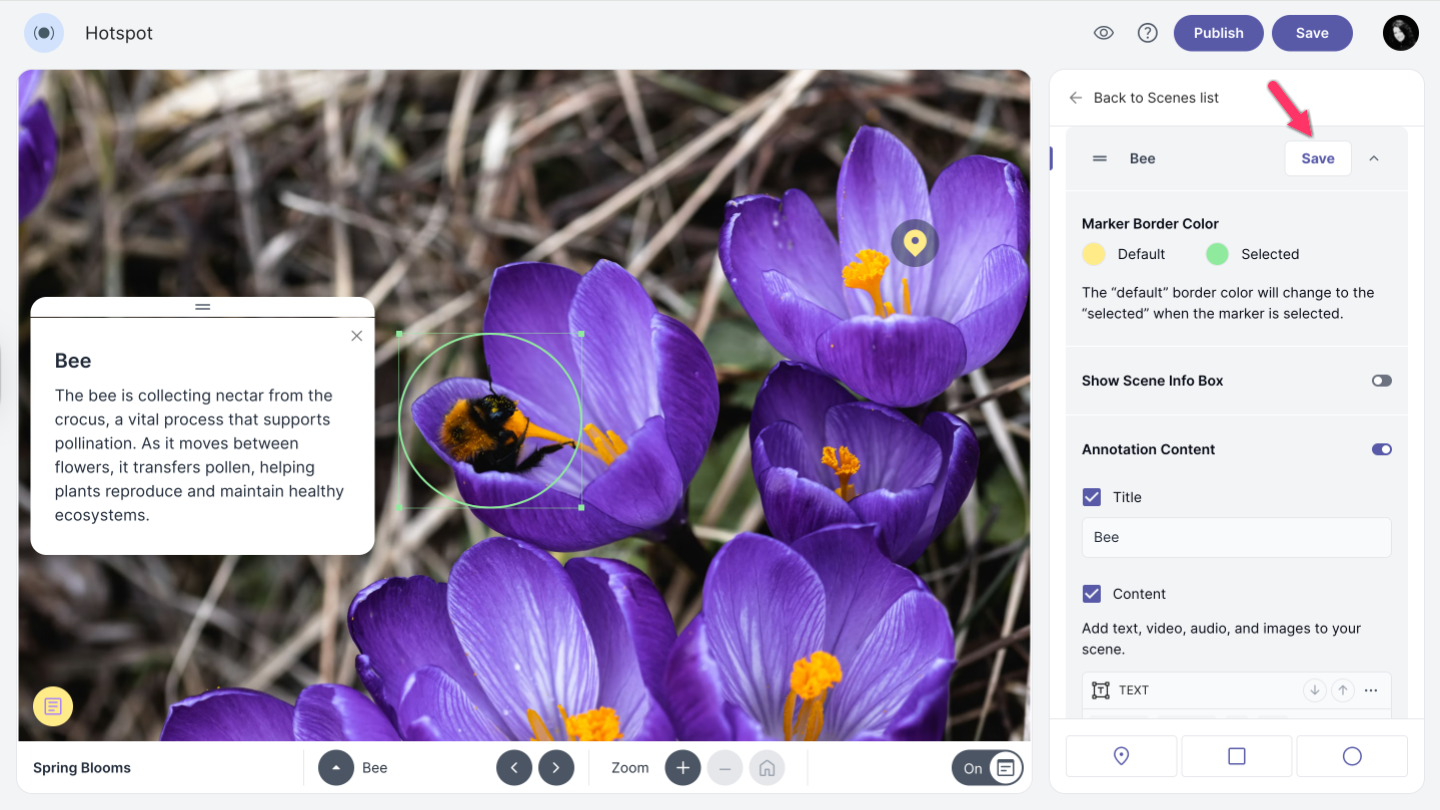
To save all changes you made to your annotation, click Save at the top of the annotation editor. If additional changes are needed for the annotation, click the  icon to open the annotation editor.
Duplicate annotation
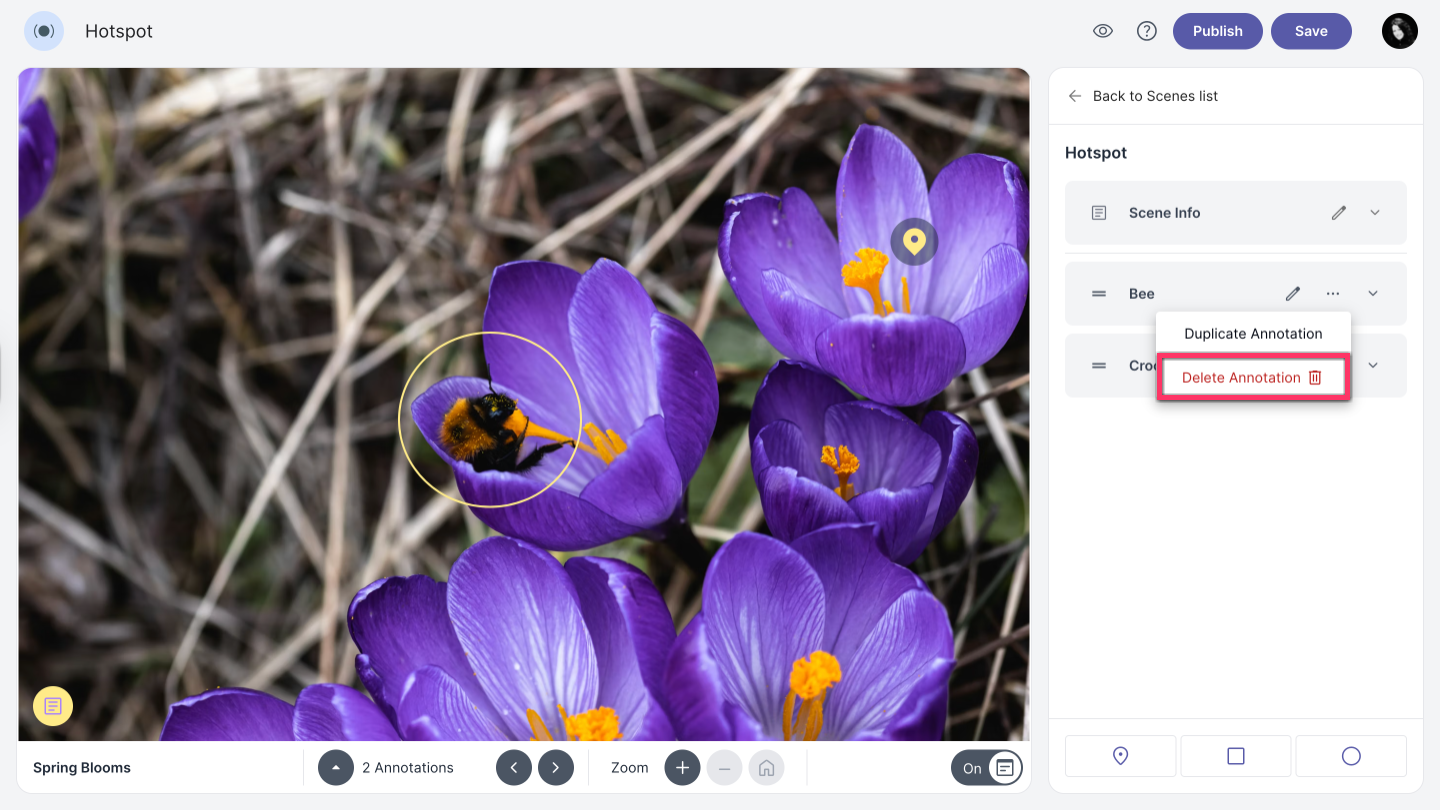
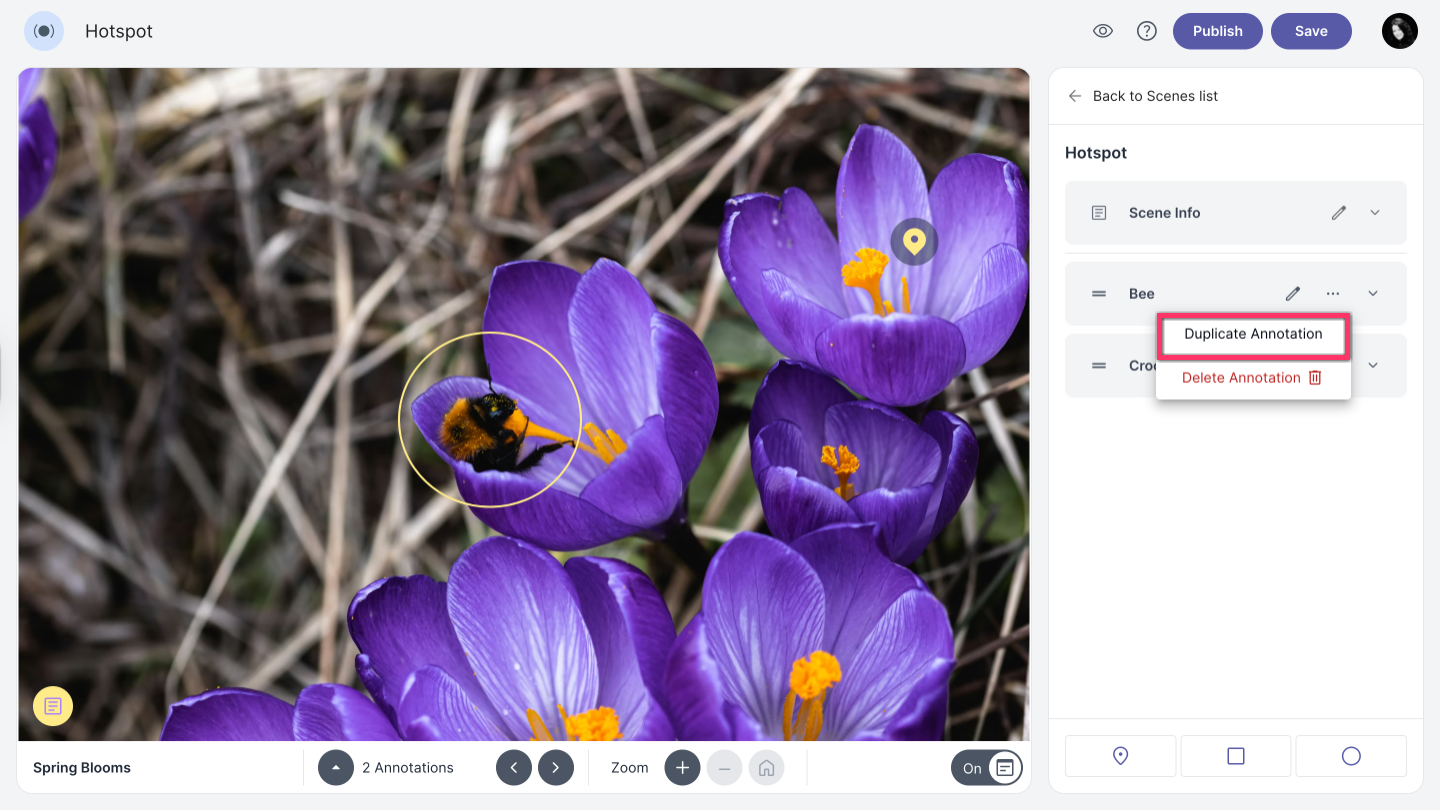
To duplicate an annotation along with all its settings, click the  and select Duplicate Annotation.
Delete annotation
If you want to delete an annotation, click the and select Delete Annotation.