Editing slides
Add slide
-
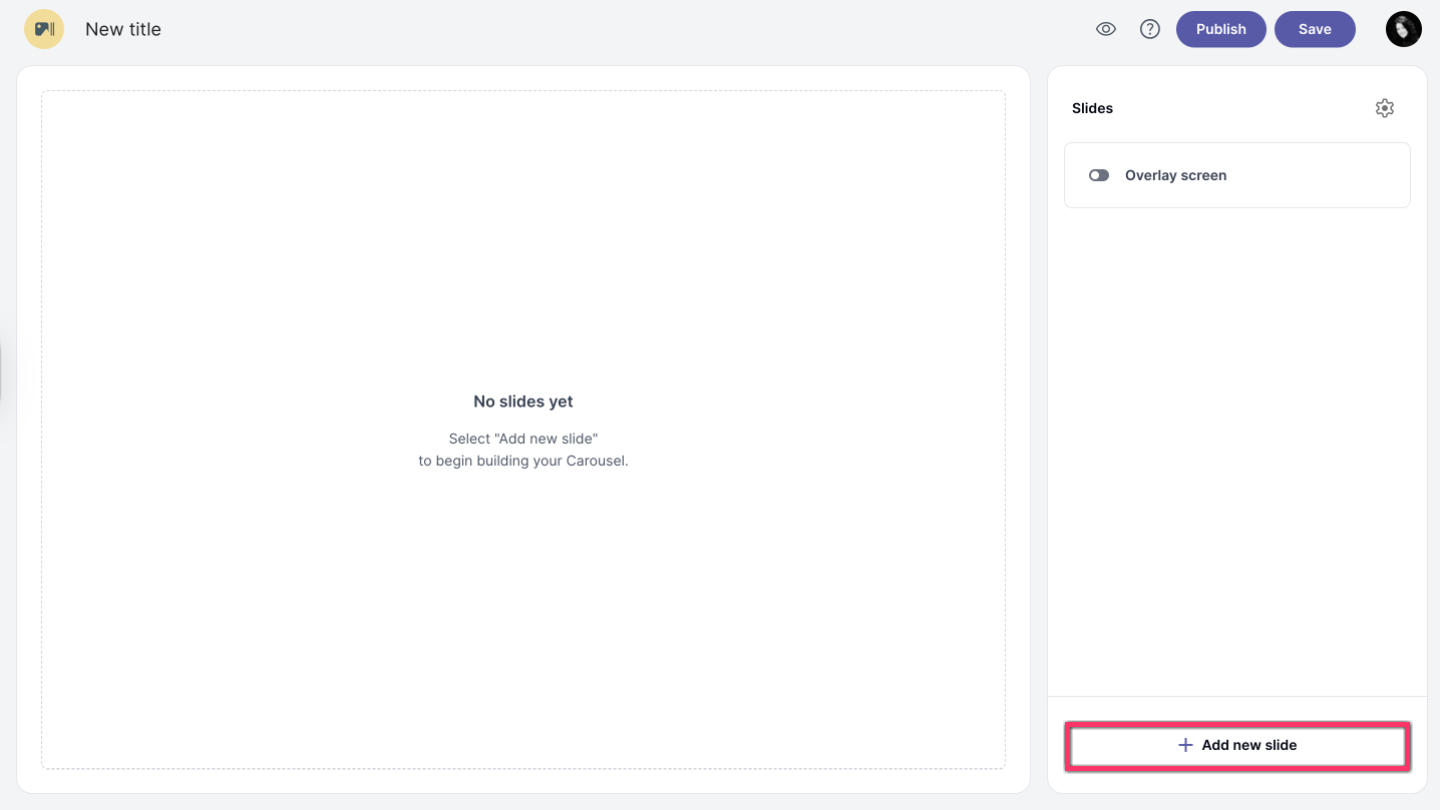
To add a new slide click on the Add slide button at the bottom of the slides panel.
-
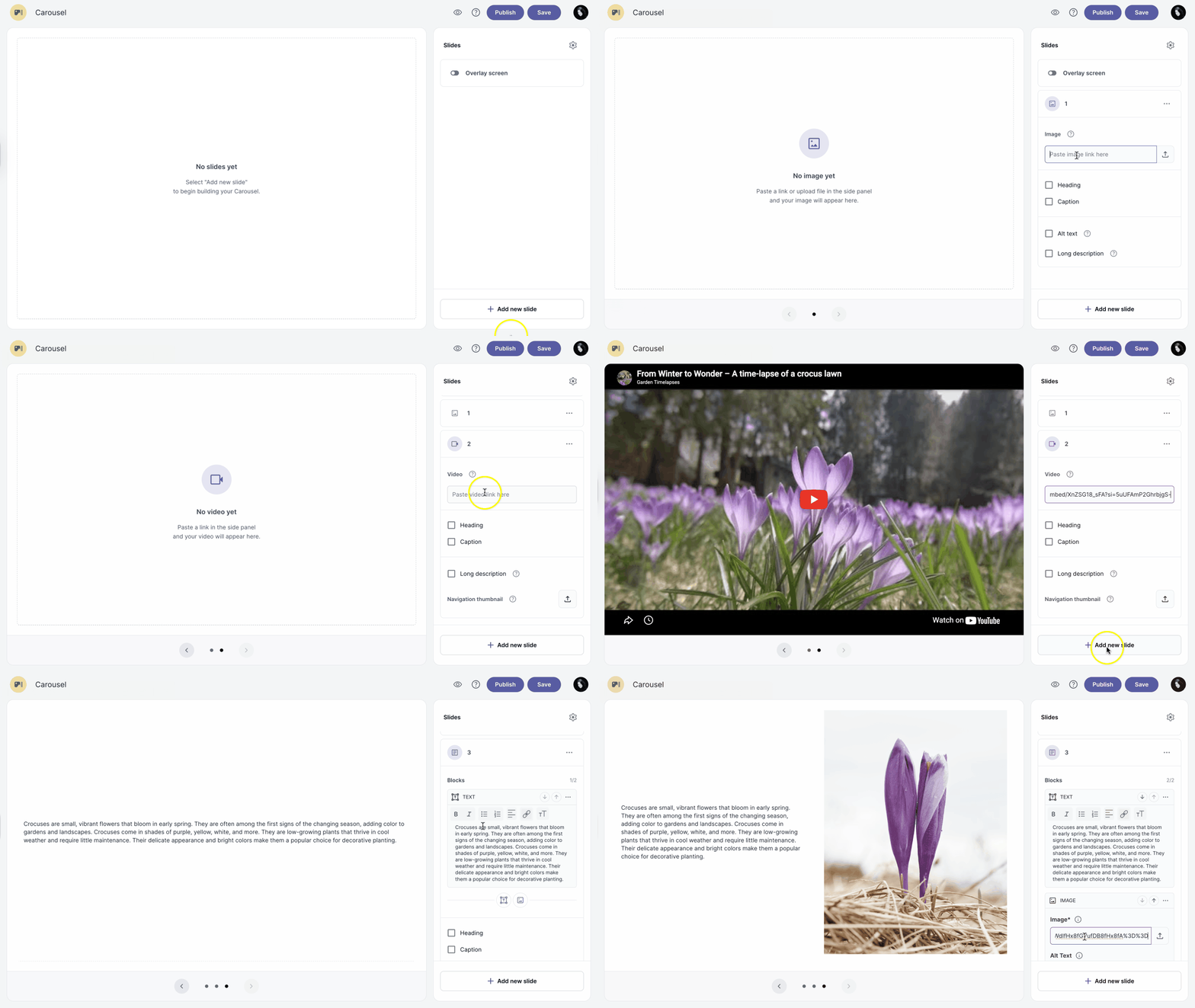
Choose slide type: Video, Image, Visualization or Text+Image.
Maximum number of slides is fourteen.
Insert link
-
Click on the slide you want to add a link.
-
Add a link into the link field.
For the image slide, paste an image URL from a website or upload an image from your computer. Supported formats are JPG, PNG, and SVG. For video or visualization slides, only links that can be embedded are supported.
Text block
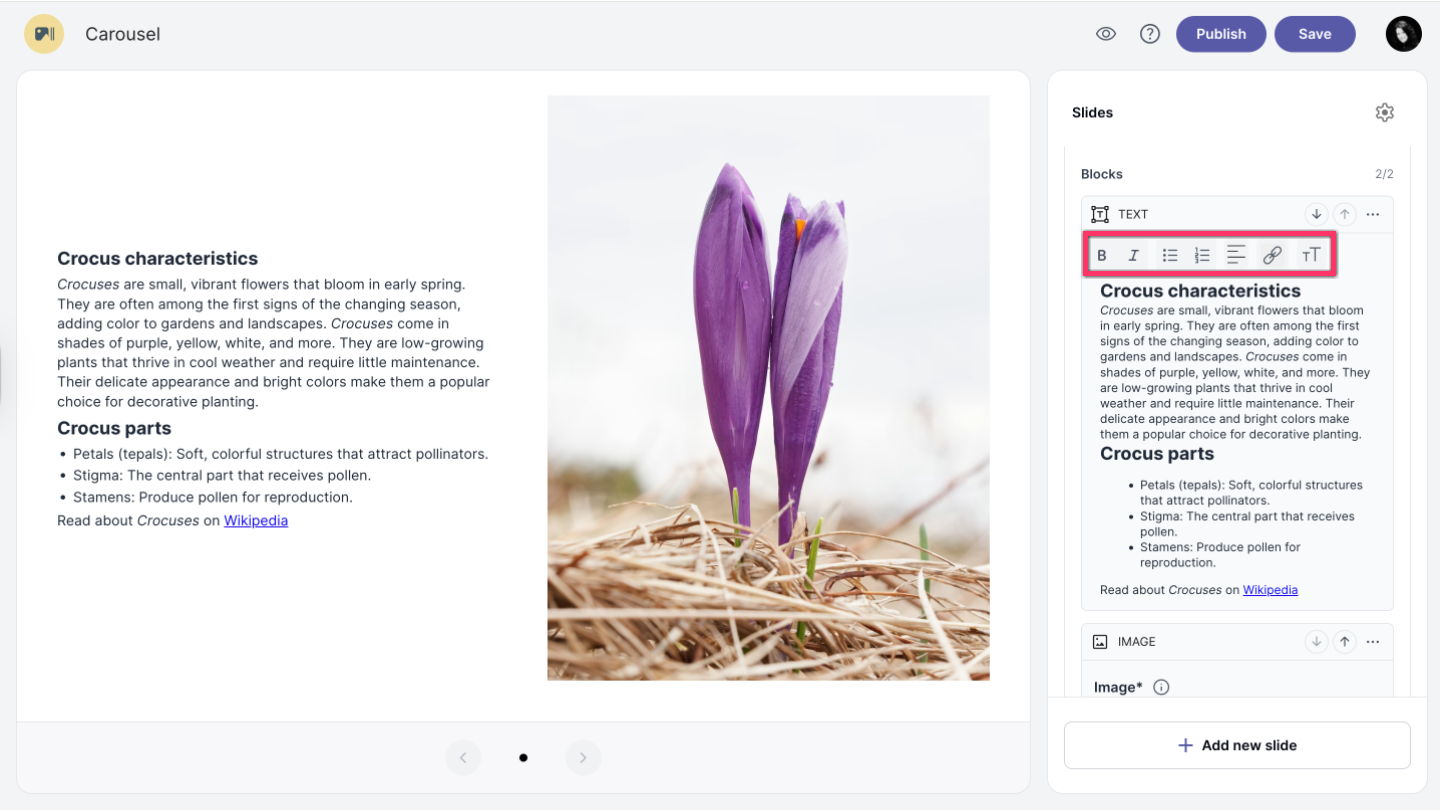
In a text block, you can style your text with bold or italic, format it as a list, adjust the alignment, or add a link to your text.
Add heading
-
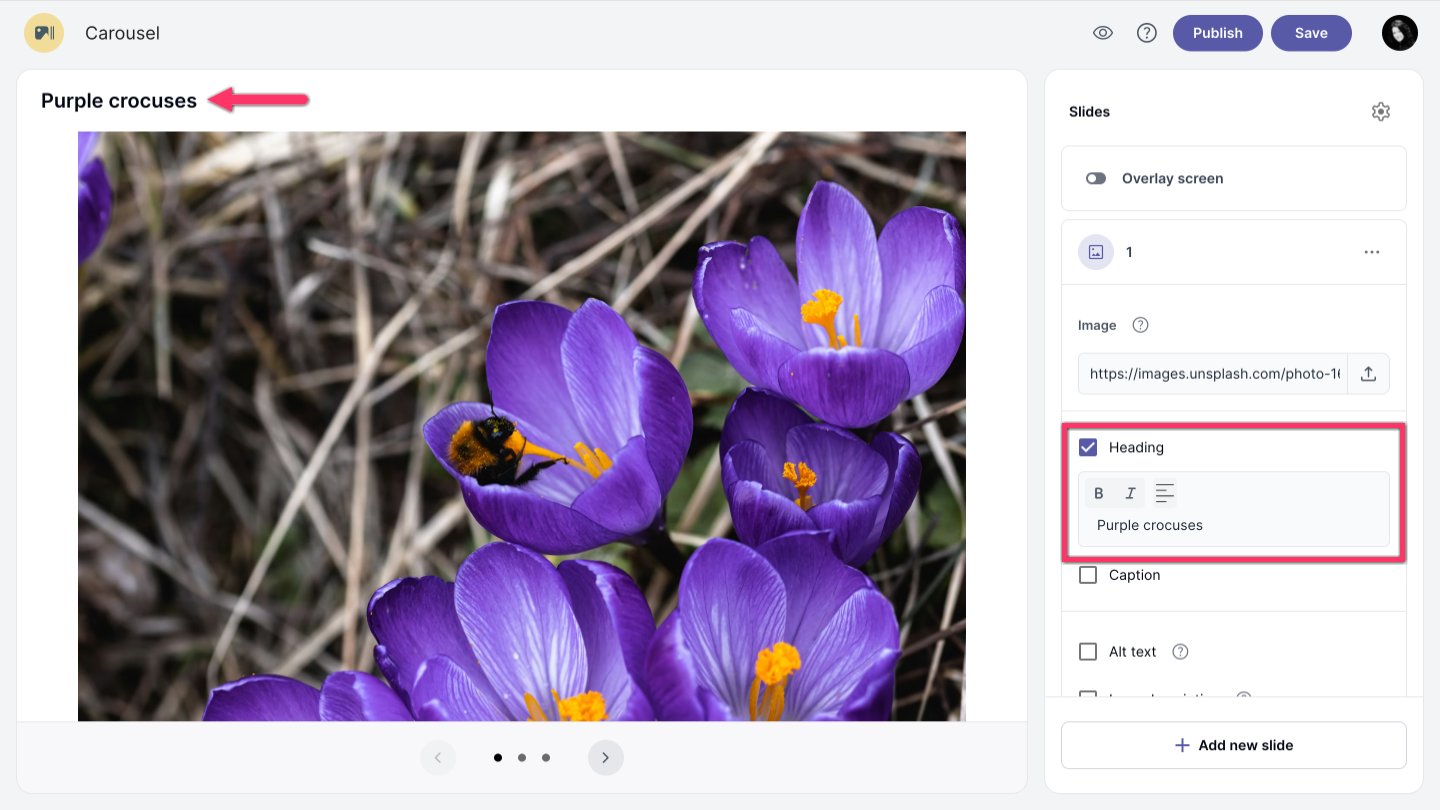
Click on the slide you want to add a heading.
-
Check the Heading option and add your heading text. You can edit the text using additional formatting options.
Add caption
-
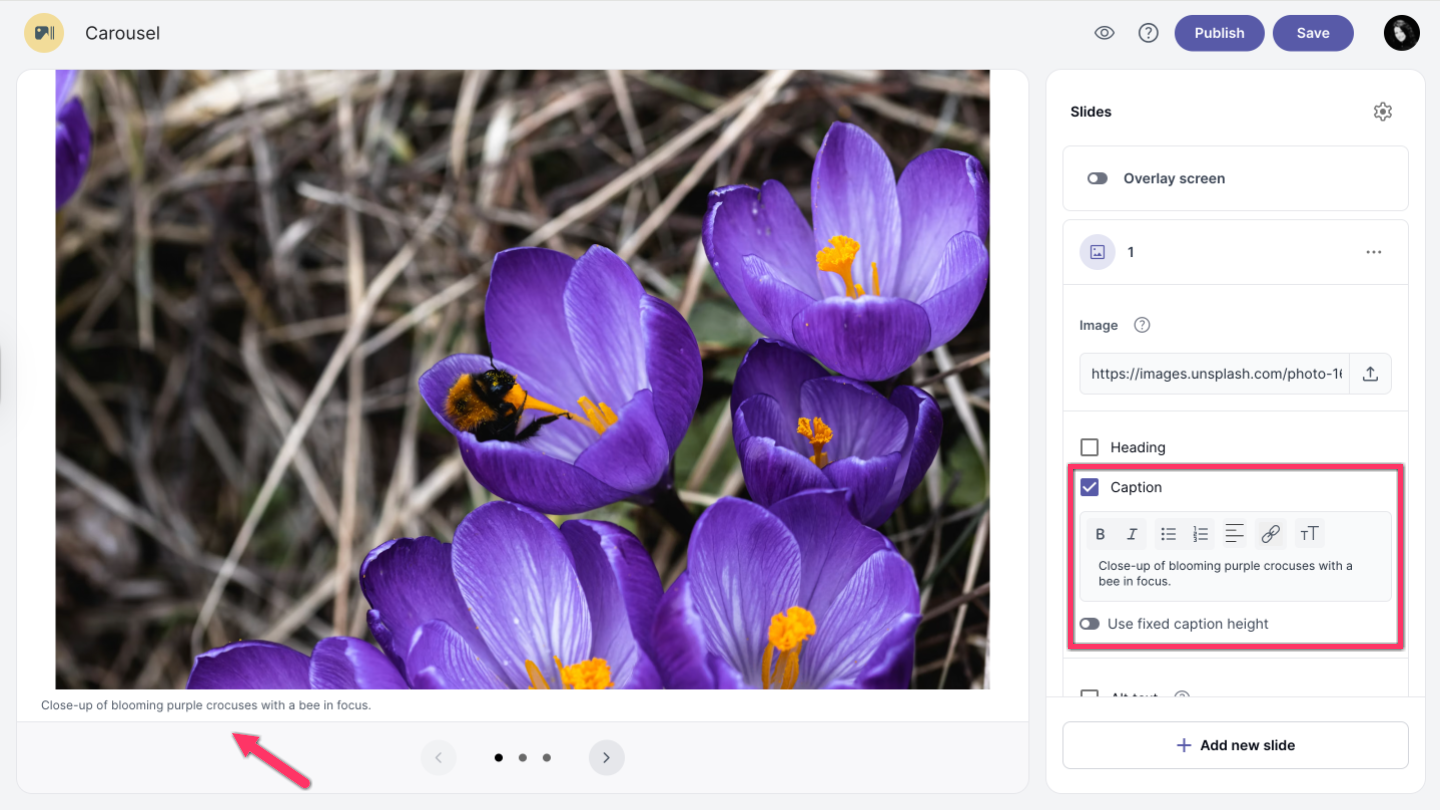
Click on the slide you want to add a caption.
-
Check the Caption option and add your caption text. You can format the text using options such as bold and italic, create a list, insert a link, or adjust the caption height.
-
To fix the caption height, enable the Use fixed caption height option and enter a value in pixels. If the caption text exceeds the set height, a scroll bar will appear.
Alt text and Lond description
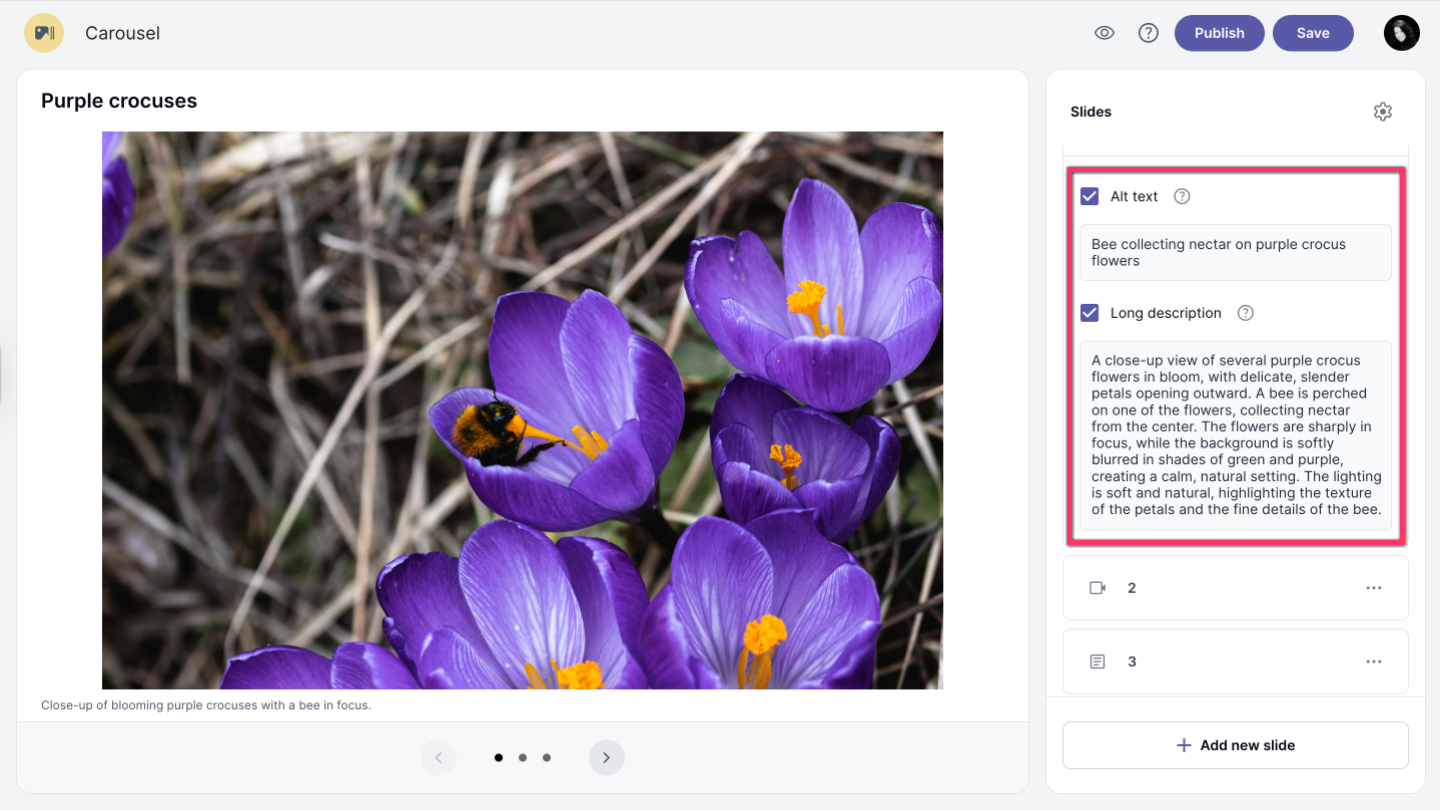
To add Alt text and Lond description, check the option and add your text.
Alt text is accessed by screen readers for people who might have trouble seeing your content.
Long description is an extended text alternative that fully explains the content and purpose of a complex image or graphic for users of assistive technologies.
Move slide
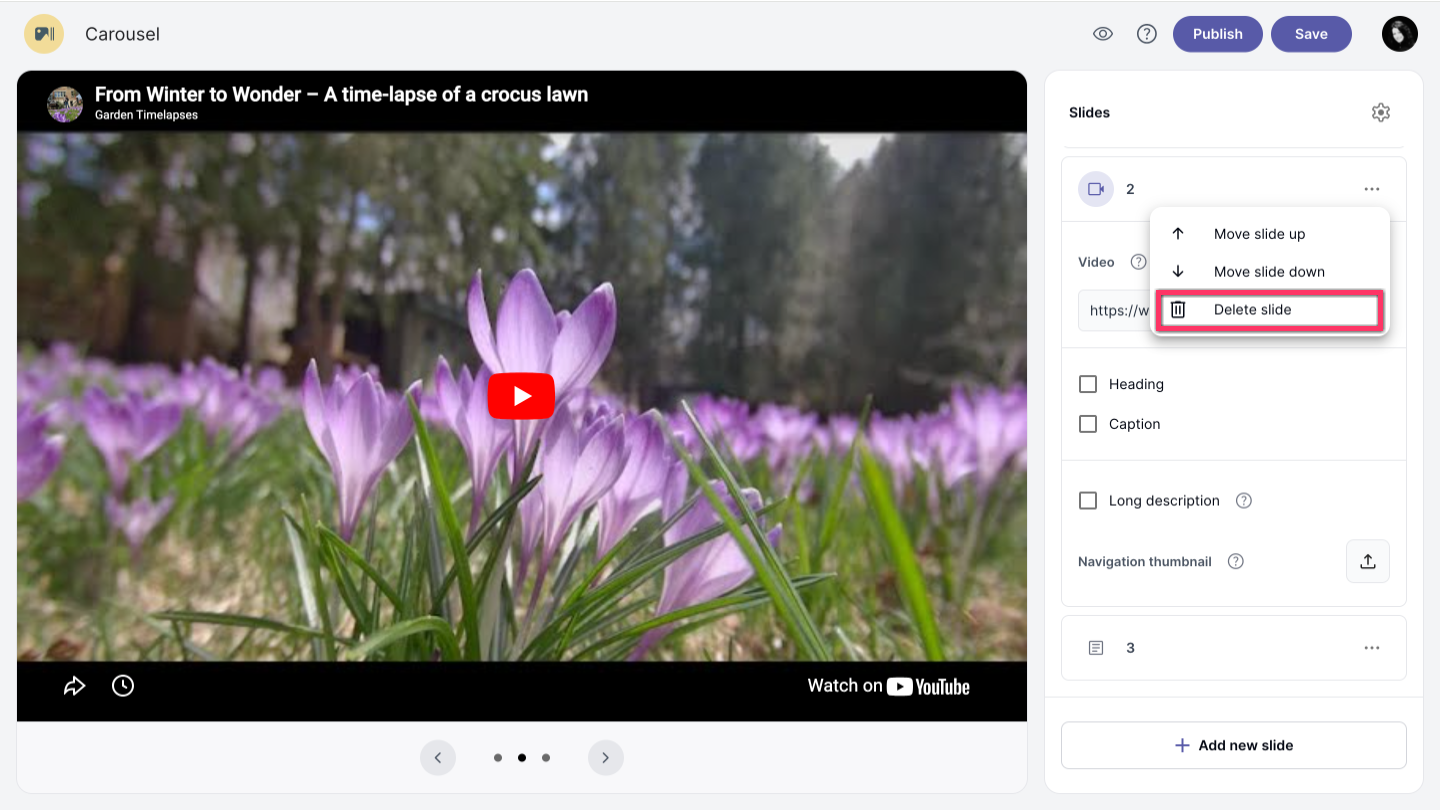
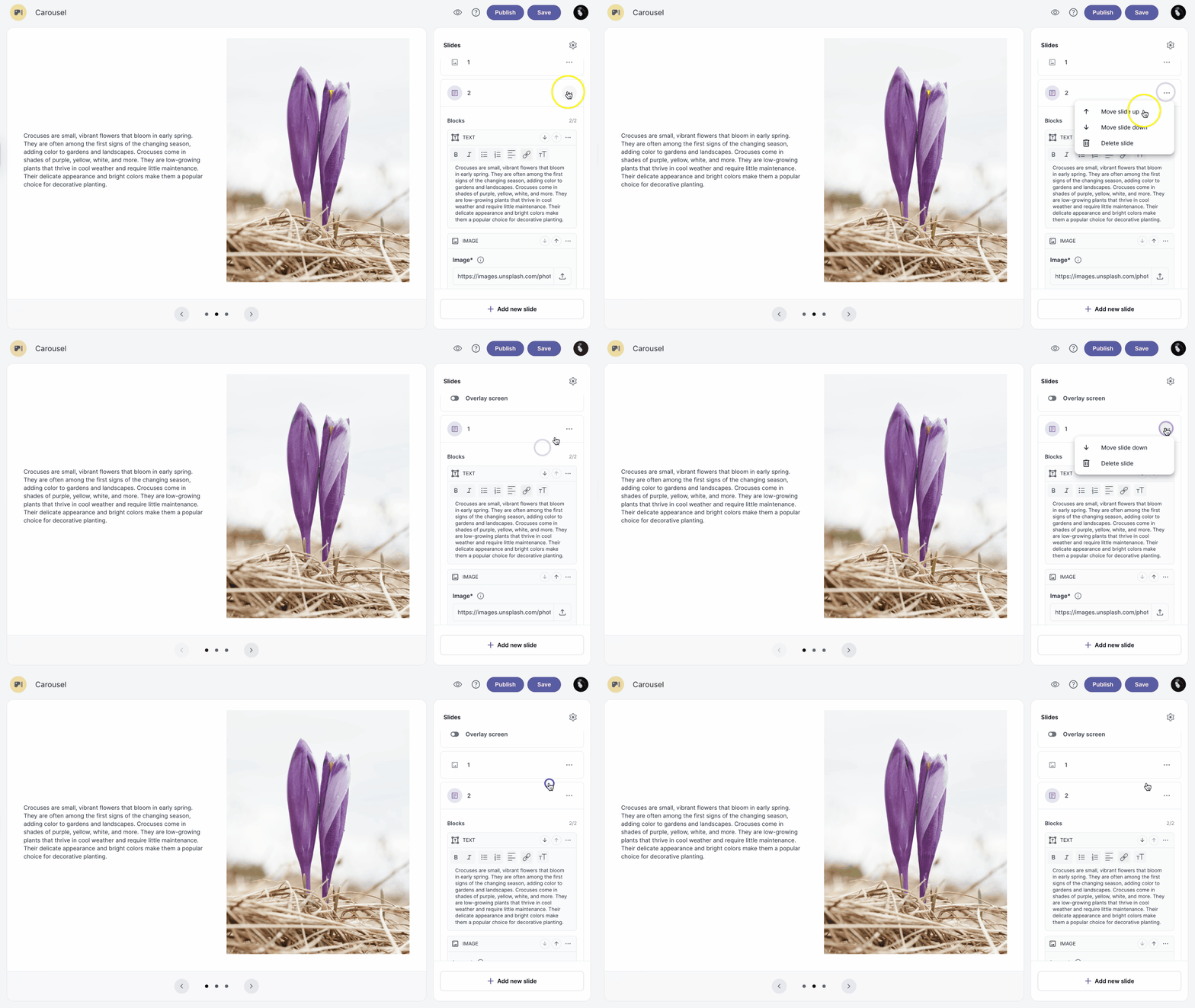
After you create your slides, you may want to change the order of the slides. Click on the three dots and select the Move slide up arrow_upward or Move slide down arrow_downward depending on where you want to move the slide.
Delete slide
-
Go to the slide you want to delete.
-
Click on the three dots and select Delete slide.