
Edit elements
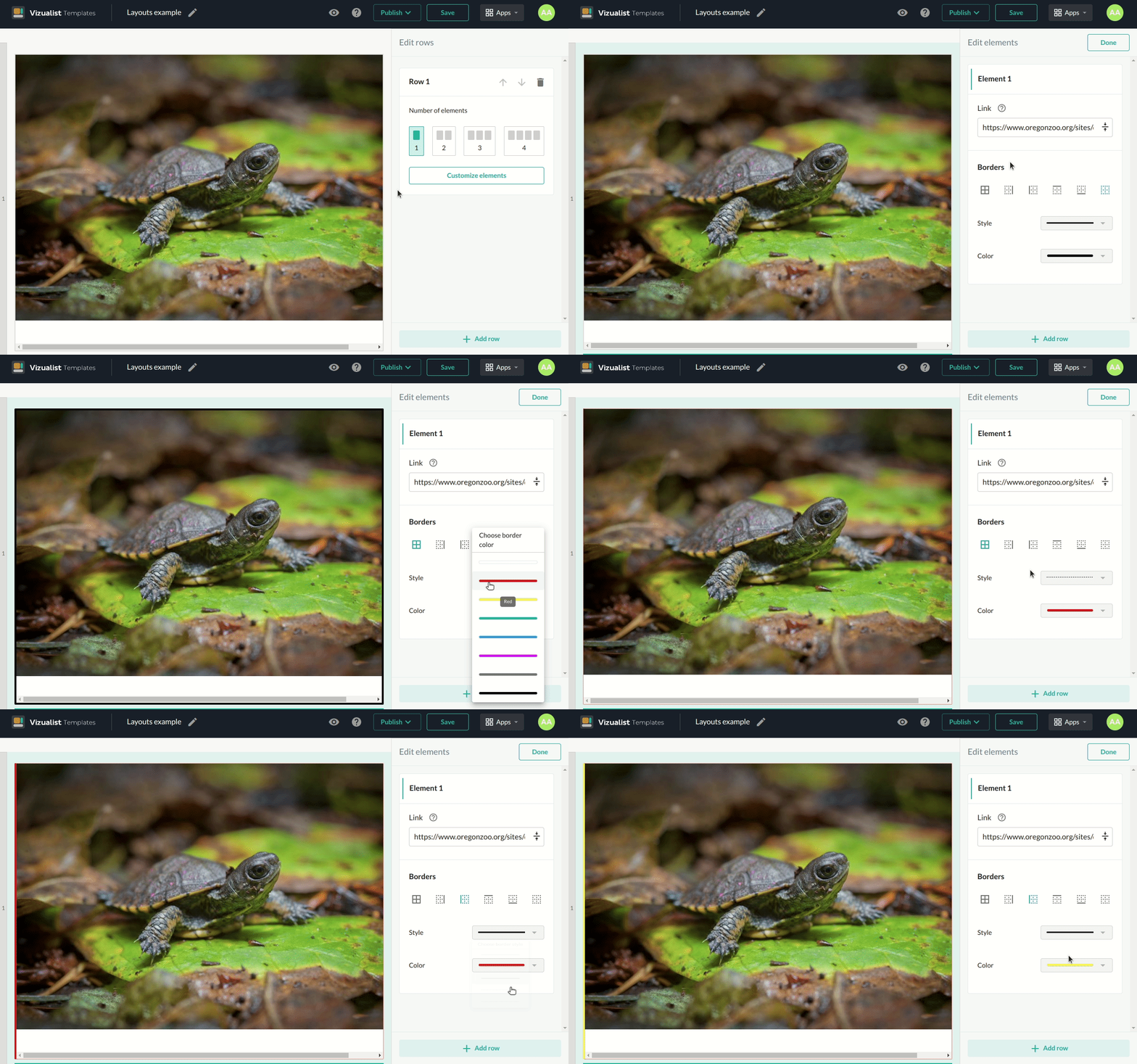
There are two ways to edit elements. The first one is to click on Customize elements, which will immediately open the edit elements panel, where you can choose which elements of the row you want to edit. Another way is to click directly on the element Click to add, and it will open edit mode for the element you have selected.
Insert link
-
Open the edit panel for the element you want to add the link to.
-
Enter the link in the Link field.
Only links that can be embedded are supported.
-
Click the Done button.
Edit borders
-
Open the edit panel for the element you want to add borders to.
You can choose to add all the borders, right border, left border, top border, bottom border or not to have a border at all by clicking on the clear borders.
-
Choose the border style.
-
Choose the border color.
-
Click the Done button.
Every element can have a different border style.
References
In the references part you can enable the Overlay screen for this template.
-
Click on the button to enable the Overlay screen.
-
Add the Overlay Title if you want.
-
Add the Overlay Text.
-
Click on the Preview button to preview the Overlay screen.